
Beschreibung
Sandefjord Airport Torp ENTO
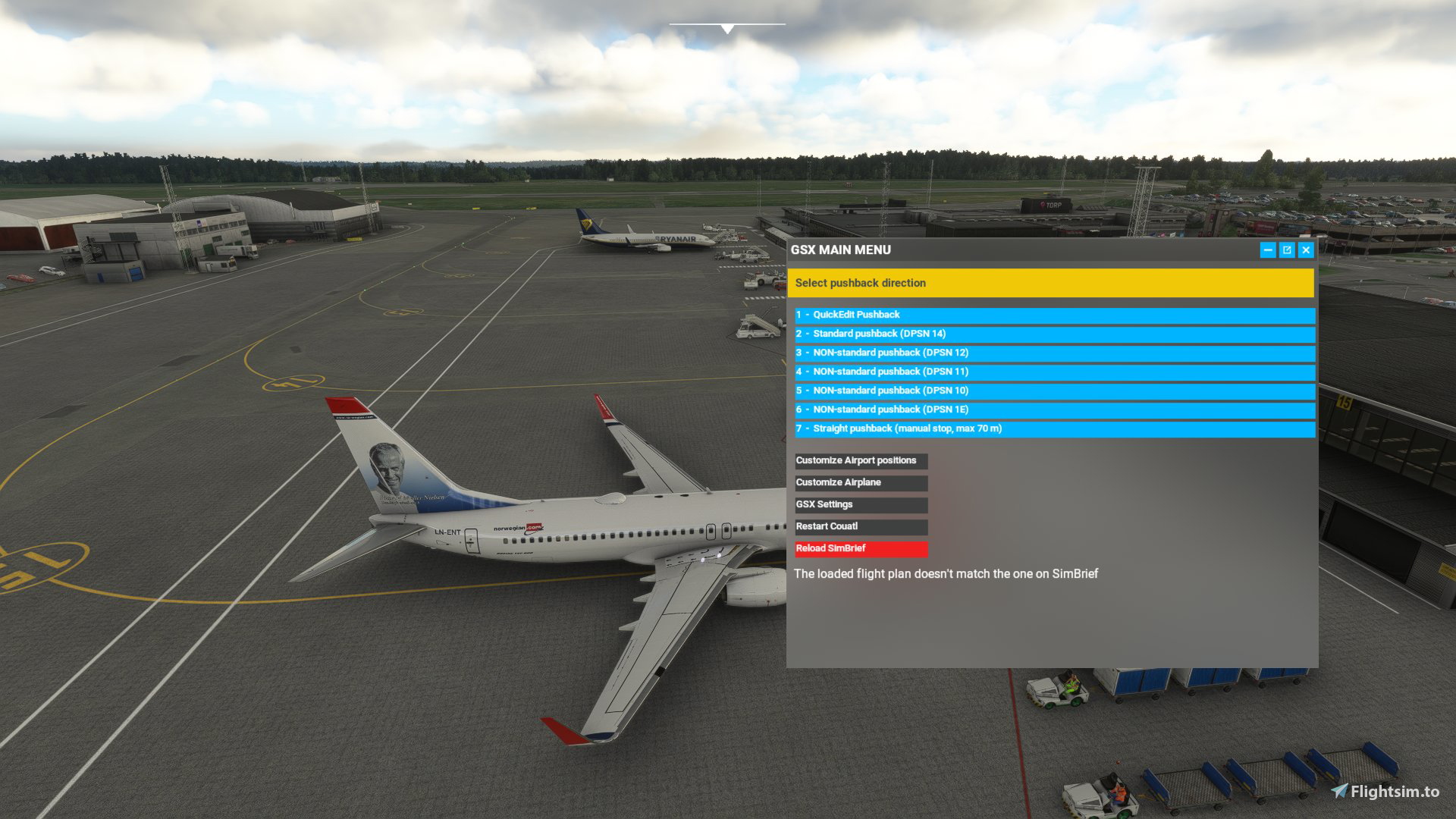
Commercial terminal all ground support equipment moved to realistic positions and all stands comes with custom pushback procedures with reference to real world procedures. All Gates have walk-in gates where the passangers will walk to and from the terminal.
Gates 2-5 have been made with the Dash-8 as a reference aircraft, the belt loader will be on the left side.
All gates come with custom pushback procedures, for proper use please refere to ground charts to find the correct pushback disconnect position (DPSN)
Version 1.2 include remote de-ice platforms on the east side of the runway, as in real life. Those positions are N1 (nose north) and S1 (nose south).
This requires ORBX Sandefjord Torp ENTO
This has been confirmed to work with the latest GSX version as of 01. October.
Installation:
Extract the .zip file and move the .ini file to %APPDATA%\Virtuali\GSX\MSFS
If you still have problems try this:
1. open MSFS and go to a random gate at ENTO
3. move some of the ground vehicles somewhere, do this to create a ini file at %APPDATA%\Virtuali\GSX\MSFS.
4. go to %APPDATA%\Virtuali\GSX\MSFS en find ENTO.ini file.
5. open the new ENTO.ini file you just made, check timestamps to make sure its the one you just made. Copy the AFCAD-path of your file ENTO.ini file
6. paste this AFCAD path into the ENTO.ini file that comes with this package
7. save and exit
8. restart MSFS and you are good to go
this should make it work. If it still dont work comment on flightsim.to download page.
GSX profile - Sandefjord Airport Torp ENTO (ORBX)
Custom GSX PRO profile for ENTO, all ground equipment moved to realistic positions and custom pushback for all gates. Commercial terminal all ground support equipment moved to realistic positions and all stands comes with custom pushback procedures with reference to real world procedures.
Versionsgeschichte
Version 1.2 include remote de-ice platforms
Ähnliche Addons
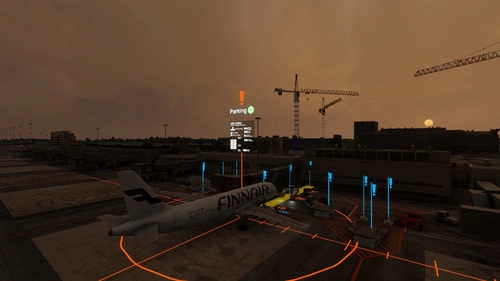
GSX profile - Helsinki Airport EFHK (MK-STUDIOS)
Custom GSX PRO profile for EFHK, all ground equipment moved to realistic positions and custom pushback for all gates and remote stands. Commercial terminal and cargo apron, all ground support equipment moved to realistic positions and all stands comes with custom pushback procedures.
von Northwind
GSX profile - Gran Canaria Airport GCLP (Aerosoft/SimWings)
Custom GSX PRO profile for GCLP, all ground equipment moved to realistic positions and custom pushback for all gates and remote stands. All ground support equipment moved to realistic positions and all stands comes with custom pushback procedures....
von Northwind
GSX profile - Oslo Airport Gardermoen ENGM
Custom GSX PRO profile for ENGM, all ground equipment moved to realistic positions and custom pushback for all gates and remote stands. Commercial terminal and cargo apron, all ground support equipment moved to realistic positions and all stands comes with custom pushback procedures.
von Northwind
GSX profile - Keflavik Airport BIKF V1 (MK-STUDIOS)
Custom GSX PRO profile for BIKF, all ground equipment moved to realistic positions and custom pushback for all gates and remote stands. Commercial terminal and cargo apron, all ground support equipment moved to realistic positions and all stands comes with custom pushback procedures.
von Northwind
Melden Sie sich an, um an der Diskussion teilzunehmen
AnmeldenKommentare(6)
about 3 years ago
about 3 years ago
OK, so first delete all ENTO .ini files, then open MSFS and go to ENTO and open editior. Go to any gate at the terminal. Move any of the ground equipment around. Then save this edited version. close editior and close MSFS. then open the new ENTO.ini file that you just created. Copy the placement location at the top. Open my ENTO.ini file and insert the placement location that you just copied. insert my ENTO .ini file into the folder and delete your ENTO.ini file. Then you can open MSFS and go to ENTO and it should work. The GSX folder is located in %appdata% and from there navigate to virtuali and GSX and then to MSFS and find ENTO.
Hope this helps!
almost 4 years ago
Pushback from stand 10 turns the entire aircraft around on initial push
almost 4 years ago
Hey, yes, that was an error on my part and have been corrected in version 1.1 along with other updates to the pushback procedures at Torp
almost 4 years ago
I think its for the ORBX version, right??? You should write that about it!
almost 4 years ago
Hey, yeah sorry for that. It is made for ORBX torp. I will update the text