

Beschreibung
Important information: Because there is another addon with the name "xMETAR" my addon for Flow Pro was renamed to "METAR2".
About
This is an addon for Flow Pro which adds to the Otto Search Bar and can be used inside the wheel.
With the xmetar or xm keyword you can retrieve the METAR information for any airport inside the simulator. In case that the airport does not have a METAR station, the data of the closest station will be shown.
Example: If you are using XMETAR EDWY you will see the information for the nearest station ETNT with a hint that EDWY does not have a station.
Installation
Unzip the file into the community folder. On the next start of the simulator you have to enter the edit mode of the wheel. Enter the name of the folder p42-util-flow-ape42_3060-xmetar into the small text box below COMMUNITY WIDGETS and click on the PLUS icon. This will add the widget to your tools.
Next you can place the XMETAR widget onto your wheel. Now you will be able to use the keyword XMETAR inside the Otto Search Bar.
Update
After updating the widget you should remove the tile from the wheel and re-apply it to the same position.
Usage
Wheel
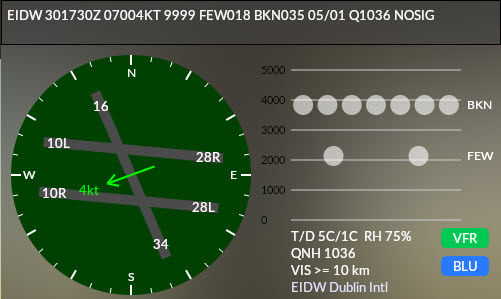
If you use the wheel icon the first time it will open up the Otto Search Bar. Enter xm or xmetar, add a space and the ICAO code of an airport. After activating the command inside the Search Bar, the widget will open and show the METAR and the visualization of the data.
After getting METAR the wheel icon will be dark green, indicating that there is any METAR available. Which one will be shown in the middle of the wheel. The first line will show up to two ICAO codes. One for the airport you asked the METAR for, one if the METAR is from the closest airport. The lines below will show the name of the airport the METAR was requested from.
Activating the dark green wheel icon will show the widget and the icon will change to light green. When activating the light green icon, the widget will be hidden.
Search Bar
Open the Flow Otto Search Bar. Enter xmetar or xm with an ICAO code to execute the widget.When the ICAO code was found, the search bar will display the name of the airport and, if present, the IATA code.
To get the information for the nearest airport according to you current location you can use xmetar . or xm . by using the dot as a shortage for your current location inside the simulator.
Provides special commands:
- xmetar +: Show the widget
- xmetar -: Hide the widget
- xmetar *: Toggle the visibility of the widget
List of nearest Airports
With xm ? or xmetar ? you can get a list of airports closest to your current location. It will show a list of airports with
- Name
- Distance in nm
- Bearing in degrees and compass direction like NWN
- Length of the longest runway
By clicking one of the shown items you will get the METAR information closest to the selected airport.
You can configure some values inside the configuration page of the wheel for this widget:
- The minimum runway length of the longest runway (0 to 5000 ft)
- The number of airports in the list (2 to 10)
Parallel runways
In case of parallel runways these are drawn with their correct names like 25R, 07L, 12C.The spatial arrangement of the runways in relation to each other is not taken into account. All runways are arranged around the center.
On most airports this will work well, e.g. KORD. On extremely busy airports like KDFW with runways 18L/18C/18R and 17L/17C/17R this will likely fail.
Color coding of Wind
The wind information is color coded:
- up to 10 kts: green
- up to 20 kts: yellow
- up to 30 kts: orange
- above 30 kts: red
Field Elevation, Density Altitude (DA)
The widget will show the field elevation in ft next to ELEV. This is the height above sea level of the airport.
Below the widget will show the Density Altitude for the airfield next to DA. This is the height, the air behaves like for the current pressure, OAT and field elevation. This value is calculated using the approximation formula taken from Wikipedia. This value indicates the virtual height to be taken from the performance charts for the aircraft. When the outside air temperature is below the ISA temperature for the field elevation, the value might be negative. This is no error!
You can adjust the settings of the wheel tile to show or hide the Density Altitude.
Flight condition badges
The widget will show two badges in the lower right corner.
The upper one is coded according to the FAA rules for VFR, MVFR, IFR and LIFR.
The other one is coded according to the european Colour Codings, see https://en.wikipedia.org/wiki/Colour_state.
Weather Preset warning
The retrieval of METAR is only necessary when you are flying with live weather. If you are using a weather preset, the weather outside will differ from the parsed METAR. In this case you will see a warning inside the Search Bar. Furthermore the section of the widget containing the METAR string will be colored red. The widget will test in the background if the weather was switched back to live weather and color the bar back to gray. This may take some time until the color changes.
Settings
The widget provides settings inside the wheel.
- Temperature in °C: When checked, the text area will display the temperature in °C, else in F.
- QNH in hPA: When check, the text are will display the QNH in hPA, else in inHg.
- Copy METAR will copy the retrieved METAR information to the clipboard. This is helpful in case you want to report an error to me. Just paste the METAR information from the clipboard into your complaint.
- Keep Otto: After executing the command, the Otto Search Bar will be kept open, showing the current METAR. If you are an experienced user who doesn't need the widget you can read the information. See next setting to hide the widget.
- Show widget: After executing the command the widget will be forced to be shown.
In case of issues
If you encounter any issues, make sure you have set "Copy METAR" and paste the METAR into a comment here at flightsim.to. I'll try to care about the issue as soon as possible and to post an update of the widget.
- Wrong display of METAR data
- Strange runway color, does not match surface type
METAR2
METAR2 is an addon designed for Flow Pro, enhancing the Otto Search Bar functionality within Microsoft Flight Simulator. Users can retrieve METAR information for any airport by using the xmetar keyword; if the requested airport lacks a METAR station, data from the closest station will be displayed. The data is visualized for better readability. Installation is straightforward, and the addon is compatible with the flightsim.to Auto Installer.


Nutzerbewertungen
3 Bewertungen
Versionsgeschichte
Added heliport support: airports without runways (e.g. hospital helipads) are now recognized and displayed with a helipad symbol — a circled "H" in the lower area of the wind rose. Detection is based on the simulator's native airportClass field, which reliably identifies heliport-only facilities.
Ähnliche Addons
Television Tower Berlin
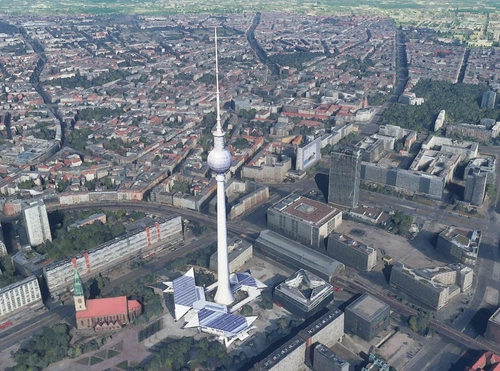
Experience an enhanced version of the Television Tower in Berlin with this add-on. Utilizing 3 LODs for optimal performance, this recreation restores the antenna cut in the original game. Created from Google Maps data, installation is simple and detailed instructions are included in the Readme.txt file.
von Ape42

Siegessäule Berlin
Explore another model for Berlin with this add-on featuring the Siegessäule monument. Using 5 levels of detail, this model is recreated from Google Maps for an authentic experience. Simply download, unzip, and install the folder to your MSFS community folder to enjoy this addition to the Berlin scenery.
von Ape42
CYVP - Kuujjuaq - Canada
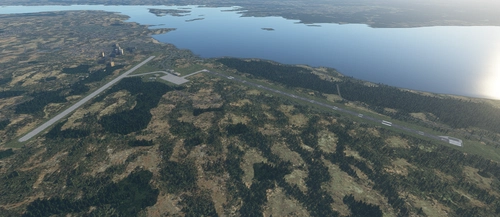
CYVP - Kuujjuaq, Canada is a simple version of the airport created for MSFS 2020. Designed for easy take-offs and landings, this add-on serves as a starting point for virtual pilots flying in the Quebec region. Explore more details on the developers GitHub repository and customize the airport to your preferences with a pull request.
von Ape42

Funkturm Berlin
A simple conversion of a 3D model representing Funkturm Berlin, suitable for basic use in Microsoft Flight Simulator 2020. For a more detailed and enhanced version, consider opting for an alternative addon by WoWa available on Flightsim.to. Included are 3 levels of detail (LODs) for varying visual quality. Installation instructions are provided in the included Readme.txt file within the downloadable .zip archive.
von Ape42
Melden Sie sich an, um an der Diskussion teilzunehmen
AnmeldenKommentare11
But I plan to see if I can get the weather from inside the simulator and to visualize that.
I'm sorry for not checking the name first.
I just have one question:
What exactly do I do if I want to change the METAR information?
How do I delete the current display?
Or you can use the Otto Search Bar with the command
xm -
or
xmetar -
to hide the widget from the screen.
And to change the METAR information, just open Otto and type
xmetar ...
with a new ICAO