

Beschreibung
THIS APPICATION IS A STANDALONE APPLICATION, IT DOES NOT RESIDE IN THE COMMUNITY FOLDER
IMPORTANT: Some users are reporting a false positive when downloading the StreamFlight Package. An alternative download is available here, https://github.com/GadgetFPV0241/StreamFlight/releases/tag/2.3.6. I am trying to sort out the current download situation, and have submitted the files to the Antivirus Gods, so in time that should be sorted out.
☎️ Support & Feedback
This is an initial release that I use myself, and to be honest works exactly how I need it to. Whilst there's no formal support, you can always pop into my stream to provide feedback, or join the discord https://discord.gg/A6gae4YSwQ, and I'll try to help. Don't forget to follow and Subscribe 🤣.
ALL SIMULATORS SUPPORTED - MSFS 2020/2024, X-Plane 11/12 and P3D
✈️ Want to display live MSFS 2020/2024, X-Plane 11, X-Plane 12, and P3D flight data on your stream — or use an in-game Gamer Mode Overlay when you're not streaming?
I was constantly battling with my streaming overlay. Either the app I used would crash mid-flight, the flight-tracking software hid basic features behind a premium subscription, or the tools that did work were far too CPU-heavy for streaming. And if they didn’t hog resources, they forced me into using some generic, non-customizable overlay that just didn’t fit my stream's look and feel.
That's exactly why I created StreamFlight — a lightweight, reliable, and simple application that updates your flight data in real time. No crashes. No hidden costs. No performance drag.
No accounts. No sign-up. No login required. StreamFlight works straight out of the box. Because there's no account system, your personal information isn't collected, stored, or shared with any third party. Your flight data stays on your own PC, giving you a privacy-first experience without unnecessary cloud services or data tracking.
Unlike many modern applications that require user accounts, cloud synchronization, or analytics services—often resulting in personal data being collected and stored on external servers—StreamFlight is designed to operate entirely on your own computer. You stay in control of your data from start to finish.
Standalone by design. StreamFlight runs as a completely independent Windows application and does not install anything into your MSFS Community folder. That means no add-on package to manage, no Community folder clutter, no simulator file modifications, and no risk of conflicts with other Community add-ons. Simply launch StreamFlight when you want to use it, and close it when you're done.
For those who aren't streaming, StreamFlight also includes Gamer Mode — a standalone, fully integrated in-game flight overlay that displays key telemetry directly inside MSFS without OBS. It's clean, unobtrusive, intelligently auto-hiding, and perfect for casual flying.
Whether you're creating a professional-looking livestream or simply want a clean, immersive cockpit display, StreamFlight gives you the information you need without the complexity, subscriptions, or privacy concerns.
Here’s how to set it up:
1️⃣ Gamer Mode
Flight Telemetry Overlay (Monitor + OBS Browser Source)
Get a sleek, always-on-screen flight overlay directly inside Microsoft Flight Simulator — or integrate it seamlessly into OBS using a Browser Source. Gamer Mode delivers real-time flight data in a beautifully styled, airline-inspired overlay: callsign, aircraft, altitude, speed, ETA/ETE, DTG, vertical speed, heading, phase, OAT, and large SkyFont departure/destination codes.
It works instantly out of the box, needs zero setup for monitor use, and includes smooth auto-hide so you can still access the MSFS toolbar whenever you need.
It works instantly out of the box, needs zero setup, and includes smooth auto-hide so you can still access the MSFS toolbar whenever you need.
✔ Dual Mode Support
✔ Monitor Overlay (no OBS required)
✔ OBS Browser Source compatible
✔ No complex configuration
✔ Clean, minimal, autohide overlay
✔ Perfect for casual flyers (non-streamer) and streamers
Just toggle it on and fly
💡 No complicated scripting. 💡 No clunky plugins. 💡 Just a clean, seamless solution that makes your stream stand out.
Streaming?
💡 Add it as an OBS Browser Source and bring your telemetry directly into your stream layout.
Add the overlay as an OBS Browser Source to bring your telemetry directly into your stream layout.
How to use:
- In StreamFlight, use the COPY button to copy the Browser Source URL
(e.g.http://127.0.0.1:38080/browsersource) - In OBS:
Add a new Browser Source
- Paste the URL into the URL field
- Set the width and height to match your selected overlay template size
Recommended sizes:
Classic / Informative:
Width: 1920
Height: 100
Basic:
Width: 1010
Height: 100
Minimal / TikTok:
Width: 600
Height: 100
- Enable "Refresh browser when scene becomes active"
- Avoid excessive scaling or stretching for best visual quality
- Position the browser source in your scene as desired
- For dual-PC setups, enable Dual PC / LAN Mode and use the displayed LAN IP
With StreamFlight, your cockpit becomes part of the show — giving your audience the immersive experience they’re looking for.
2️⃣ Control Input Overlay
Live Flight Control Visualisation (OBS Browser Source Only)
Display real-time Roll, Pitch, Rudder, and Throttle movement directly in your stream using the built-in Control Input Overlay. Designed for cinematic flying, landings, hand-flying, and immersive cockpit content, the overlay provides a clean, responsive visual representation of your aircraft controls.
The Control Input Overlay works using simulator-reported control positions and is fully integrated into StreamFlight with no additional plugins, scripting, or setup complexity required.
- Live Roll / Pitch / Rudder / Throttle display
- OBS Browser Source compatible
- Works with General Aviation, PMDG, Fenix, and default MSFS aircraft
- LAN / Dual PC compatible
- No hardware mapping or calibration required
- Smooth, responsive movement
Perfect for streamers who want to showcase manual flying, crosswind landings, smooth control inputs, and cinematic approaches.
💡 Add it as an OBS Browser Source to bring live control movement directly into your stream layout.
How to use:
In StreamFlight, use the COPY button to copy the Control Input Overlay URL, (e.g. http://127.0.0.1:38082/controls)
In OBS:
- Add a new Browser Source
- Paste the URL into the URL field
- Recommended Width: 420
- Recommended Height: 420
- Enable "Refresh browser when scene becomes active"
- Position and resize the overlay as desired
For dual-PC setups, enable Dual PC / LAN Mode and use the displayed LAN IP.
Some complex aircraft may show slight differences in pitch or throttle range due to aircraft flight control systems and simulator limitations.
3️⃣ Create Your Custom Overlay
Use Photoshop (other graphics programs are available) to design an overlay with all your labels — Aircraft, CallSign, Altitude, Speed, Heading, ETE, ETA, Network, or anything else you want to share with your viewers. Keep it styled to match your stream’s look.
Set Up A Nested Scene In OBS
Open OBS and create a new Nested Scene — for example, call it “FlightData.” example is provided in the images
Add your overlay image to this scene. Then, for each flight data element you want (speed, altitude, etc.), add a Text Source (Text (GDI+)) in OBS. Choose “Read from File” and point it to the corresponding text file that StreamFlight generates in the Output folder (you set this folder the first time you start StreamFlight).
Add To Your Main Scene
Now just drop the "FlightData" Nested Scene into your main streaming scene. Position the text elements exactly where you want them on your overlay.
4️⃣ Go live!
As soon as StreamFlight is connected to MSFS 2020/2024, X-Plane 11, X-Plane 12 or P3D, the application will notify you of the connection status. It updates all files in real time. Your viewers will see smooth, live flight data — perfectly in sync with your flight.
MSFS2020 / MSFS2024 Only
🎥 Orbit Camera
Smooth Cinematic Orbit Around Your Aircraft
The Orbit Camera creates a fluid, cinematic view that circles your aircraft in real time, giving you a dynamic, professional-looking perspective while you fly.
It continuously tracks your aircraft, maintaining a smooth orbit with adjustable speed, distance, and height — perfect for showcasing liveries, capturing cruise footage, or adding movement to your stream.
✔ Smooth, continuous orbit
✔ Adjustable speed, distance, and height
✔ Real-time tracking of aircraft position and heading
✔ Subtle bank-aware motion for a natural cinematic feel
✔ One-click start and stop
MSFS2020 / MSFS2024 Only
✈️ FlyBy Camera
Dynamic Pass-By Shots for Maximum Impact
The FlyBy Camera creates cinematic pass-by shots where your aircraft flies through the scene, delivering dramatic, high-impact visuals.
The camera positions itself ahead of the aircraft and tracks it as it approaches, passes, and disappears into the distance — just like real-world aviation footage.
✔ Adjustable start distance, end distance, and offset
✔ Smooth tracking through the full pass
✔ Realistic motion and timing
✔ Perfect for takeoff, approach, and low passes
✔ One-click activation
🔄 RESET PROGRESS BAR + FLIGHT PHASE
The RESET PROGRESS BAR + FLIGHT PHASE feature provides a manual way to reset your flight state once the aircraft has landed. When the button is clicked after landing, it clears progressbar.txt, start_dtg.txt, and progressbar_startdtg.txt, and forces the current flight phase back to PREFLIGHT. This feature is simulator-agnostic and works consistently across all supported simulators. It is especially useful for scenarios such as touch-and-go operations or quick turnarounds, where you may land, taxi off the runway, and begin a new flight leg without shutting down the engines or restarting the simulator.
⚙️ Core Features
🧭 Real-Time Data Capture
Automatically generates live data files throughout your flight:
- ETE (Estimated Time Enroute) – continuous time tracking
- ETA (Estimated Time of Arrival, UTC) – precise arrival prediction
- Altitude – live altitude updates
- Headings – true, magnetic, and gyro
- Speed – real-time ground speed monitoring
- Distance to Waypoint (DTG) – GPS-based distance updates
- Distance to Destination – true remaining distance
- Outside Air Temperature (OAT) – live environmental monitoringAll data saved automatically in text files for easy access and integration.
🛫 Flight Planning Integration
SimBrief Sync or Manual Entry
- Supports:
Aircraft Type
- Callsign
- Departure & Destination ICAO Codes
🌐 Flexible Network Connectivity
Choose how you fly:
- 📴 OFFLINE Mode
- 🌎 VATSIM
- ✈️ IVAO
- 🎧 PILOTEDGE
- 📡 BEYOND ATC
- 🎙️ SAY INTENTIONS
- 🌎 JOIN FS
- 🌎 UniFly
- 🌎 MSFS Server
🚀 Smart Flight Phase Tracking
Automatic detection and logging of all major flight stages:
- PREFLIGHT → TAXI → TAKEOFF → CLIMB → CRUISE → DESCENT → APPROACH → LANDING → TAXI
Provides complete situational awareness from gate to gate.
⏱️ Dynamic Time Calculation
- ETA (UTC) and ETE continuously updated
- Based on current speed and distance remaining
- Ensures accurate arrival predictions under changing conditions
📈 Live Progress Bar
A live progress bar showing your flight’s distance completion — updated automatically from SimBrief and Flight Simulator data. Instructions on how to setup the progress bar is included in the ZIP package.
🧭 Manual Flight Phase Override
StreamFlight automatically detects each flight phase — from PREFLIGHT → TAXI OUT → TAKEOFF → CLIMB → CRUISE → DESCENT → APPROACH → LANDING → TAXI IN → PREFLIGHT — based on real-time simulator data such as speed, altitude, and engine state. In rare cases (for example, due to simulator reconnection, weather fluctuations, or mid-flight interruptions), the automatic system may lose sync.
The Manual Flight Phase Override feature allows you to correct the current phase manually without restarting your flight.
Use Manual Override only when:
- The displayed phase is incorrect or frozen.
- The simulator or StreamFlight was restarted mid-flight.
- You are testing StreamFlight’s phase transitions.
- For normal flights, keep this option off — the automatic phase detection will manage everything.
How to Use
Enable "Manual Flight Phase Override". This temporarily disables automatic phase synchronization. Select the Correct Phase by clicking the appropriate radio button that matches your current situation:
- PREFLIGHT – Parked, engines off
- TAXI OUT – Taxiing for departure
- TAKEOFF – Takeoff roll or rotation
- CLIMB – Positive rate, ascending
- CRUISE – Level at cruise altitude
- DESCENT – Controlled descent from cruise
- APPROACH – Below 3,000 ft and near destination
- LANDING – Final stage or on runway
- TAXI IN – Taxiing to gate or parking
The overlay and output files (e.g. flight_phase.txt) will update immediately.
Re-enable Automatic Mode
Once the correct phase is selected, uncheck the Manual Override box to resume automatic phase detection. StreamFlight will continue tracking normally from that point. Avoid leaving Manual Override active during regular flights — it pauses all automatic Flight Phase Changes.
⚙️ Installation
THIS APPICATION IS A STANDALONE APPLICATION, IT DOES NOT RESIDE IN THE COMMUNITY FOLDER
Extract: Unzip the downloaded file to any directory, using a utility such 7-Zip, WinZip or whatever (e.g., ...\StreamFlight\)
Run: Double-click StreamFlight.exe to start the application
🛠️ Setup
Upon first launch, StreamFlight will ask you to select an output folder for the data element text files, Browse to the directory of your choice (e.g., ...\StreamFlight Flight Data\). It is advisable to keep the output folder for the data element text files separate from the application folder, so in the case of an update your data elements are unaffected.
✨ Usage
Enter the manual input requirements, which are, Aircraft Type, CallSign, Departure ICAO, Destination ICAO and Online Network (if flying offline, select "NONE"). Click "Save Manual Fields", this create the text files in the chosen output folder. THATS IT!
All the other elements will be created once you are connected to the simulator and will be updated live during the flight. When diconnected from the simulator you will see the updated connection staus in StreamFlight. It will constantly look for a connection and change its status if the simulator reconnects. In addition, all automatically updated text files will revert to either N/A or 00:00 when no simulator connection is present.
💻💻 How To Use With A 2 PC Setup
Shared Network Folder (Recommended)
On your Simulator PC:
- Open your StreamFlight output folder (for example: C:\StreamFlight\Output).
- Right-click the folder → Properties → Sharing → Share.
- Share it with your streaming PC user or “Everyone” (read-only is fine).
On your Streaming PC:
- Press Win + R, type \\SIMPCNAME\StreamFlight\Output (replace SIMPCNAME with your simulator PC’s name), or map it as a network drive (e.g., Z:).
In OBS:
- Add a new Text (GDI+) source.
- Choose “Read from file” and browse to:
Z:\flight_phase.txt
- Z:\vspeed.txt
- Z:\altitude.txt
- etc.
- OBS will refresh automatically as StreamFlight updates those files (usually every second).
✅ Pros
- Instant updates
- Simple, local-network friendly
- No code changes needed
⚠️ Make sure both PCs are on the same LAN and file sharing is enabled in Windows.
📚 Resource
Included in the ZIP file, are two Streaming Overlay examples "overlay_demo.png" and "overlay_demo_with Phase.png" to serve as a visual reference for understanding the overlay process. This example demonstrates the intended structure, placement, and styling approach. You may use the "overlay_demo.png" or "overlay_demo_with Phase.png" to familiarise yourself with the method, and once you are comfortable, you can proceed to create your own overlay following the same principles.
⚠️ X-Plane Support (via XPUIPC)
X-Plane support in StreamFlight relies entirely on the XPUIPC plugin, which acts as the bridge between the simulator and StreamFlight’s telemetry system. If XPUIPC is missing or not installed correctly, StreamFlight will automatically detect this and notify you, ensuring you know exactly what needs to be fixed. After the initial setup or whenever StreamFlight updates the required configuration (such as XPUIPCOffsets.cfg), a restart of X-Plane is required for the changes to take effect. To simplify setup, StreamFlight includes a bundled copy of XPUIPC located in ...\StreamFlight\XPUIPC Support\. If you don’t already have XPUIPC installed, simply copy all contents from this folder into your X-Plane directory at ...\X-Plane\Resources\plugins, then restart X-Plane. Once installed correctly, StreamFlight will automatically detect the plugin and begin receiving telemetry data without any further configuration.
☎️ Support & Feedback
This is an initial release that I use myself, and to be honest works exactly how I need it to. Whilst there's no formal support, you can always pop into my stream to provide feedback, or join the discord https://discord.gg/A6gae4YSwQ, and I'll try to help. Don't forget to follow and Subscribe 🤣.
WANT TO SEE IT IN ACTION
⚠️ License & Disclaimer
This free software is provided “as is,” without any warranty of any kind. It is intended solely for educational and entertainment purposes. By using this software, you accept full responsibility for compliance with all applicable rules, laws, and regulations, and you assume all associated risks.
This software makes use of SimConnect © Microsoft Corporation. All rights reserved.
This application is not affiliated with, endorsed by, or approved by OBS or its developers.
AFTER ALL THAT... ENJOY
IMPORTANT: Some users are reporting a false positive when downloading the StreamFlight Package. An alternative download is available here, https://github.com/GadgetFPV0241/StreamFlight/releases/tag/2.3.6. I am trying to sort out the current download situation, and have submitted the files to the Antivirus Gods, so in time that should be sorted out.
StreamFlight - ONE COMPANION • EVERY SIM • EVERY FLIGHT
StreamFlight is an all-in-one flight companion for MSFS 2020/2024, X-Plane and Prepar3D. Monitor live telemetry, automatic flight phases, route progress bar, ETA/ETE/DTG, weather, aircraft and flight-plan data, with SimBrief integration. Display your flight through Gamer Mode or customisable OBS/Streamlabs overlays, with live control-input displays and automated camera tools. Lightweight and standalone, with no Community-folder installation, account, login — Your data stays on your PC. Built for streamers and non-streamers who simply fly for themselves.


Unterstützer





Nutzerbewertungen
44 Bewertungen
Versionsgeschichte
StreamFlight 2.3.6 is the final release of the StreamFlight 2.x freeware series. CHANGES & IMPROVEMENTS • Added an upgrade notification and direct upgrade path for the newly released StreamFlight 3. • Updated release packaging and distribution files. • General maintenance and minor reliability improvements. • Cleaned up files included with the public distribution. • Updated supporting documentation. • StreamFlight 2.3.6 will remain available as the free legacy version of StreamFlight. STREAMFLIGHT 3 IS NOW AVAILABLE StreamFlight 3.0.0 marks the beginning of the next generation of StreamFlight, with major new features and continued development. StreamFlight 3 is available from: https://gadgetfpv.co.uk/streamflight/ Thank you to everyone who has downloaded, used, tested and supported the freeware versions of StreamFlight. One Companion • Every Sim • Every Flight
Ähnliche Addons
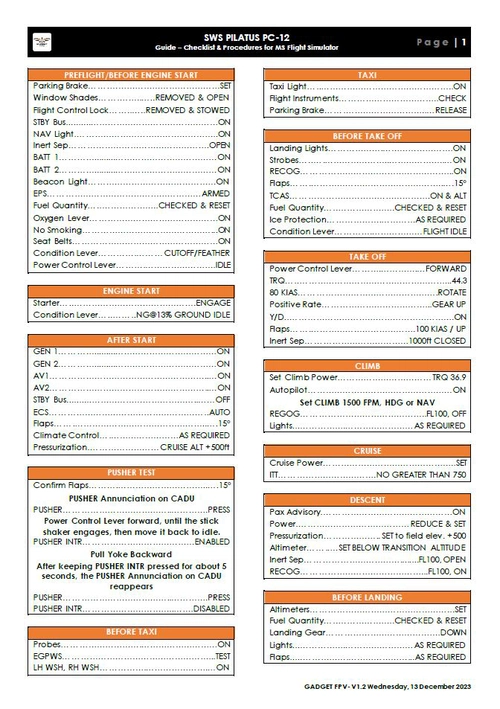
SWS Pilatus PC12 Checklist
A simple checklist designed for the SWS Pilatus PC12, focusing on the essential steps to successfully take off. Assumes familiarity with cockpit layout and usage of GNS/TDI/GTN navigation systems. Created to assist in getting the aircraft airborne efficiently. Featuring a minimalistic approach for a smoother flight experience.
von GadgetFPV
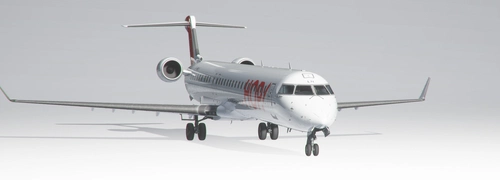
GSX Profile Aerosoft CRJ 1000
Enhance your GSX experience with this custom profile for the Aerosoft CRJ 1000, designed to eliminate issues with passenger animations during boarding. Simply install the profile in the specified folder to enjoy a smoother GSX operation.
von GadgetFPV
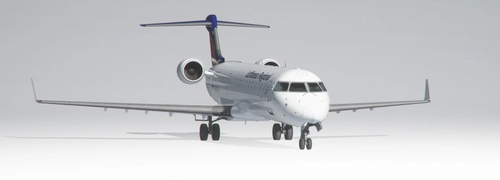
GSX Profile Aerosoft CRJ 700
Enhance your CRJ 700 experience with this custom GSX Profile, designed to address floating passengers and other issues. Easy installation instructions included.
von GadgetFPV
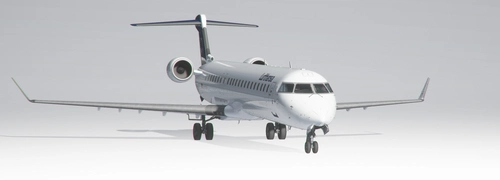
GSX Profile Aerosoft CRJ 900
Enhance your GSX experience with a custom profile for the Aerosoft CRJ 900. Say goodbye to PAX dropping from the skies with this carefully crafted solution. Install it easily and enjoy a smooth virtual boarding process!
von GadgetFPV
Melden Sie sich an, um an der Diskussion teilzunehmen
AnmeldenKommentare(160)
5 months ago
In Microsoft Flight Simulator 2024 (Sim Update 5), a limitation affects Orbit and FlyBy camera modes.
After using External view, the simulator may remember this state and return to External when STOP is pressed — even if you switched back to cockpit beforehand.
⌨️ Workaround
* Avoid using External view before Orbit/FlyBy
* Or press "END" (default key) to return to cockpit
ℹ️ Status
* ✔️ Microsoft Flight Simulator (2020) not affected
* ⚠️ Currently not fully controllable via SimConnect
We’ll revisit this if a simulator-side fix becomes available.
GadgetFPV
about 6 hours ago
Thank you for putting the time and effort into developing something that addresses a very specific need for flight-sim streamers.
about 2 hours ago
12 days ago
29 days ago
30 days ago
about 1 month ago
about 1 month ago
about 1 month ago
about 2 months ago
about 2 months ago
about 2 months ago
about 2 months ago
2 months ago
3 months ago
3 months ago
3 months ago
3 months ago
4 months ago
4 months ago
A huge thank you to GadgetFPV for tuning into my stream today and sharing tips and tricks directly in chat — that kind of hands-on support from the developer is rare and genuinely appreciated. Highly recommend for any flight sim streamer. — AwakenedSoldier
4 months ago