Flightsim.to
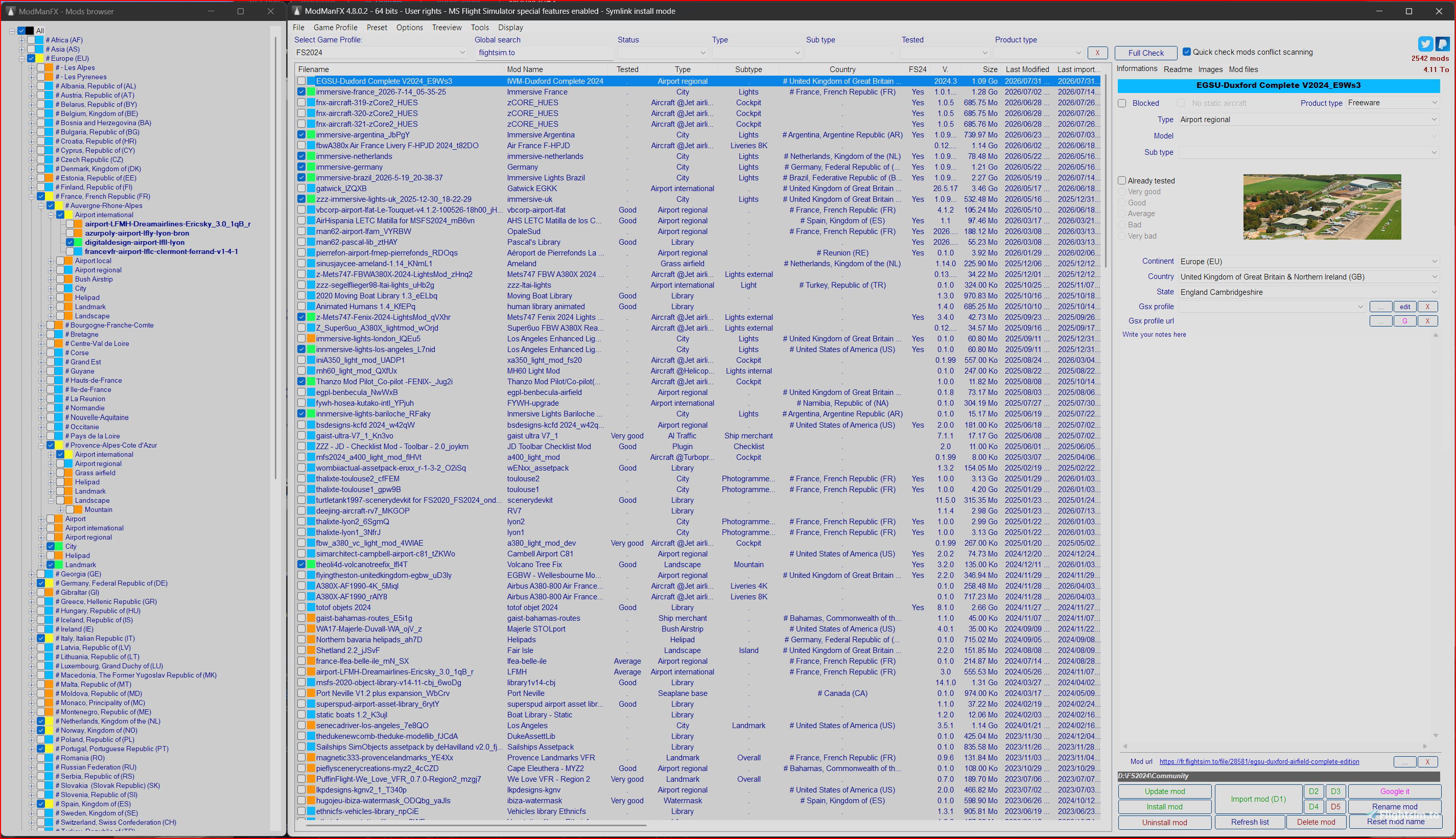
    ModManFX - Image 1

    Beschreibung

    ModManFX free for ever generic mod manager utility.
    (c)2020-2026 Skypat
    https://www.twitter.com/Skypat
    ModManFX manage your mods for ALL games and do all necessary files backup in one click and manage conflict
    It's always the game vanilla file which will be restored even if you install several mods which overwrite the same file.

    ModManFX have dedicated features for MSFS 2020 and MSFS 2024 and use symbolic link to install mods.
    ModManFX have dedicated features for STARFIELD and manage it's game folder but also its document's folder and also Starfield.ini file
    ModManFX have dedicated features for CYBERPUNK 2077, VALHEIM

    ARCHIVE FILES FORMAT
    *.zip
    for mods *.rar, *.7z, ModManFX will extract it automatically and create a folder in .\ModManFX\profiles\YOUR_PROFILE_NAME\mods
    ie: D:\ModManFX\profiles\FS2020\mods\MOD_NAME
    ie: D:\ModManFX\profiles\Starfield game\mods\MOD_NAME
    ie: D:\ModManFX\profiles\Valheim\mods\MOD_NAME


    FULL UNLOCKED FEATURES FOR ALL USERS
    Btw you can donate with Paypal to sustainable development :)


    THE MORE IMPORTANT FEATURE IS:
    it's free so don't use ModManFX if you dislike it
    Wonderful internet world allow everybody to find its best utility ever


    ---------------------------------------------------------------------------------------
    INSTALLATION or UPDATE
    ---------------------------------------------------------------------------------------
    It's a portable App, enjoy!
    Extract from zip then put ModManFX64.exe file somewhere on your harddrive.
    NOT in *\WINDOWS...* and NOT in *\Program files...* and NOT in your game folder
    ie: *your drive:\MODMANFX\ModManFX64.exe*
    Launch it.
    A blue Microsoft windows message will occur saying "Unknown product", just bypass...
    It will automatically create its subfolder at first launch.
    Some sensitive antivirus can warn you, it's due to some shell command software used (https://www.autoitscript.com/site/).
    For update, just overwrite ModManFX64.exe file, nothing else.

    ---------------------------------------------------------------------------------------
     HELP AND TIPS - Flight simulator 2020 / 2024 specifics
    ---------------------------------------------------------------------------------------

    if FS20xx is not installed on a NTFS hardrive (ex: Fat or ExFat), instant installing mods with NTFSLink or SYMlink is not possible
    - Filecopy classic mode will be used (installing mods take more time)


    1 - FIRST LAUNCH
    At first launch, ModManFX will ask you to create a profile, you must click *Add FS20xx* in *Game Profile* menu
    then find MSFS20xx "community" subfolder location (the openfile dialog box ask you for).
    You can rename profile if you want
    Then ModManFX will ask you to add your first mod to the list, optionnal at this time


    3 - ZIP files or FOLDER mode
    If you authorize ModManFX to unzip files when it ask for, you don't need at all to take care about ZIP file structure, 
    ModManFX will install mod correctly to community folders in all case because it looks for specific files to find the good subfolder.
    But if you don't authorize ModManFX to unzip files, ZIP files must have a good file structure.


    4 - SORTING OUT YOUR MODS WITH CATEGORIES
    MSFS20xx: if you take time to sort your mods with ModManFX, about type, model, subtype, continent, countries, state (at the right of ModManFX utility), 
    you will able to install/uninstall i.e. all european continent mods (or one country and so on) in ONLY ON click (click checkbox at the treeview Mod Browser on the left).
    After selecting mod in the main center list: (you can also use CTRL or SHIFT to select several mod).


    5 - PURGE FS2020 CACHE AUTOMATICALLY or MANUALLY
    This will improve FS20xx stability.
    Added *MS Flight Simulator- Purge sceneries cache now* menu subitem in *Tools* menu
    Added *MS Flight Simulator- Purge packages cache now* menu subitem in *Tools* menu
    If clicked ModManFX will purge(delete) cache after user prompt
    Added *MS Flight Simulator- Purge sceneries cache automatically* menu subitem in *options* menu
    Added *MS Flight Simulator- Purge packages cache automatically* menu subitem in *options* menu
    If checked and if MS Flight Simulatoris not running, ModManFX will purge(delete) automatically cache each time you install or uninstall a mod.
    Added *MS Flight Simulator- Delete directly instead recycle bin when purging cache* mensubitem in *options* menu
    if checked, when purging cache, delete command will be use instead recycle bin.
    if not checked, deleted cache files can be restored with Windows Recycle Bin.
     
    9 - GSXPRO PROFILE MANAGEMENT
    - Use *...* button to add an entry in the profile combo list for selected airport (choose .ini file or zip, rar, .7z archive file) 
    - Use *edit* button to edit the selected profile for selected airport scene
    - Use red cross *X* button to remove a profile in the combolist for selected airport scene
    - Use combolist to choose and associate one profile for the selected airport scene 
    - For each airport scene you can enter a GsxPro profile Web Url (useful to check manually profile update)
    - When installing an airport, Gsx pro profile will be installed to C:\Users\your_name\AppData\Roaming\virtuali\GSX\MSFS
    - When uninstalling an airport, Gsx pro profile will be uninstalled from C:\Users\your_name\AppData\Roaming\virtuali\GSX\MSFS
    - ModManFX will check if GsxPro profile match your airport scene
    For others Flight simulation supporting GXPRO utility, you can:
     - add gsw=1 key in profiles.ini game section to activate ModManFX Gsxpro features
     - add gsx_profile_dir key in profiles.ini game section to show way to Gsx profile path. (ie: gsx_profile_dir = c:\user\AppDataDir\virtuali\GSX\P3D)

    NOW, PLEASE *READ HELP & TIPS - GENERAL* in this readme file for others HELP AND TIPS

    ---------------------------------------------------------------------------------------
     HELP AND TIPS - Starfield specifics
    ---------------------------------------------------------------------------------------
    ModManFX can manage mods for both (1) Starfield game folder and (2) Starfield document folder with 2 profiles (only one click to switch between these profiles)

    1 - FIRST LAUNCH
    At first launch, ModManFX will ask you to create a profile, you must click *Add Starfield* menu in *Game Profile* menu
    a submenu appears
    Click *Add Starfield document folder" and find *C:\Users\YOU\Documents\My Games\Starfield folder location (the openfile dialog box ask you for).
    an inputbox ask you for a profile name
    Then ModManFX will ask you to add your first mod to the list, optionnal at this time
    Click *Add Starfield game folder" and find *Starfield.exe* file location (the openfile dialog box ask you for).
    an inputbox ask you for a profile name
    Then ModManFX will ask you to add your first mod to the list, optionnal at this time
    Great, you have now two separate profile for Starfield
    just use *Select Game Profile* combo box to switch between both profiles

    2 - STARFIELD MANAGEMENT AND BA2 FILES
    when installing .ba2 files, ModManFX will add entries automatically in Starfield.ini or Starfieldcustom.ini file
    when Uninstalling .ba2 files, ModManFX will remove entries automatically in Starfield.ini or Starfieldcustom.ini file
    Even if *Data* folder is not in the mod archive files, ModManFX will install files at the good location.
    If the archive file root folder is not good, in lots of case, ModManFX will install files at the good location.
    Added several type and several sub categories to match all mods type. 

    3 - StarfieldCustom.ini
    ModManFX create automatically these Starfieldcustom.ini keys if it don't exists
    bInvalidateOlderFiles=1
    sResourceDataDirsFinal=""

    you can use *Mod Files* tab page at the right to install/uninstall only some files (CTRL and SHIFT works for multi-selection)
    More features to come if needed.

    NOW, PLEASE *READ HELP & TIPS - GENERAL* in this readme file for others HELP AND TIPS

    ---------------------------------------------------------------------------------------
    HELP & TIPS - GENERAL
    ---------------------------------------------------------------------------------------
    1 - FIRST LAUNCH
    At first launch when ModManFX ask you for game root folder, ModManFX will ask you to create a profile, you must choose a game in *Game Profile* menu
    Then ModManFX will ask you to add your first mod to the list.


    2 - EACH LAUNCH
    At each launch, if the mod list is empty, ModManFX will ask you to add your first mod to the list.


    3 - ADDING MOD TO THE LIST
    For ALL GAMES and specially for MSFS2020, the safe and better way is to use the "D1" or "D2" or "D3" button to add a mod to the list.
    ModManFX will ask you to enter the MOD HOME URL, it's optional but it's useful for checking manually future mod update at mod's home website.
    When you use "UPDATE MOD" button, it will ask you for an updated mod file. 
    After update, you won't loose type, subtype, model, countries sorting and all others informations you entered previously.


    4 - CUSTOM MOD FOLDER LOCATION
    Custom Mod's folder location are useful when having lots of mods
     By default you only have one mod's folder located in ...\ModManFX\profiles\*your game profile name*\Mods
     now, you can have two additionnals mod's folder where you want
     just click on D2 or D3 button. 
     - Red color = drive path is not set or not valid anymore, click button to set
     - Green color = drive path is OK, click button to add a mod in this folder
     
     You can also modify these path in .\ModManFX\profiles.ini file
     locate your game profile section and modify keys as you want, ie:
     [Flight Simulator 2020]
     drive2=d:\mymods
     drive3=e:\storage\mods


     you can also move mods manually between the default location folder and these D1,D2 folders as many time as you want in all way!
     you won't loose anything after moving mods, just restart ModManFX64.exe or use *Refresh Mod List* button (MANDATORY)


    5 - SORTING OUT YOUR MODS WITH CATEGORIES
    use the several drop down list box at the right to sort out your mods (only for MSFS2020 at this time). 
    Modified things are saved instantly.
    You can also enter your personal notes at the bottom right then click save.


    6 - REFRESHING LEFT TREEVIEW MOD BROWSER
    After sorting out your mods (previous step) or after adding a mod to the list.
    Click "Refresh by countries/type/etc" at the bottom of the left "Mods Browser" to update the treeview entries.
    This treeview will allow you to install/uninstall a whole continent's mods or a whole country's mods or others things with only one click on the checkbox.


    7 - MOD EVALUATION
    For ALL GAMES, you can also evaluate mod with the "verygood, good, average, etc..." checkbox part on the right.


    8 - MOD'S SCREENSHOTS and README
    If mod's author wrote a text file, it will be visible in "Readme" Tabpage.
    Same for .jpg and .png screenshots included in zip mod file you downloaded, it will be visible in "Screenshots" tabpage.


    9 - BLOCKED MODS
    *blocked* status for a mod means it will not be automatically installed by left treeview mods browser
    useful when installing a whole treeview item without some blocked mods.
    (ie: installing all country's mods without blocked mods)
    Blocked mod will appear with purple square in treeview mods browser
     
    10 - CUSTOM COMBO LIST ENTRIE
     you can add your own custom type, model and so on, it won't be overwritten by upcoming ModManFX releases
     in example for MS Flight Simulator: \ModManFX\combolist\msfs_model.ini file
     1- Create a new file and name it: msfs_model.ini.custom (don't forget .custom extension name)
     2- Add entries inside this new file like in msfs_model.ini file
     all msfs_model.ini.custom entries will be added to msfs_model.ini entries in ModManFX application combolist.
     if needed, use the same way for others \ModManFX\combolist\*.ini files


    11- TREEVIEW MODS BROWSER COLORS
     - Black means current selected item
     - Blue means all mods are uninstalled
     - Yellow means than somes mods are installed and some others not
     - Dark Green means that a blocked mod is not installed but others mods are installed
     - Light Green means alls mods are installed


    12- CUSTOM MODS'S FOLDER
    Custom Mod's folder location are useful when having lots of mods
    By default you only have one mod's folder located in ...\ModManFX\profiles\*your game profile name*\Mods
    now, you can have two additionnals mod's folder where you want
    just click on D2 or D3 button to set location
    - Red color = drive path is not set or not valid anymore, click button to set
    - Green color = drive path is OK, click button to add a mod in this folder
    You can also modify these path in .\ModManFX\profiles.ini file
     locate your game profile section and modify keys as you want, ie:
     [Flight Simulator 2020]
     drive1=
     drive2=d:\mymods
     drive3=e:\storage\mods
    you can also move mods manually between the default location folder and these D1,D2 folders as many time as you want in all way! (uninstall these mods first)
    you won't loose anything after moving mods, just restart ModManFX64.exe or use *Refresh Mod List* button (MANDATORY) 

    13 - MODS PRESET LIST
    To save a preset, just select (highlighted lines) several mods and click preset.save item in Preset menu (CTRL and SHIFT works for multi-selection)
    To load a preset click preset.load item in Preset menu, if some mods misses, ModManfx display what miss.
    Selected(highlighted) mods can be added to an existing preset with *Add selected mods to preset* subitem in preset menu

    ---------------------------------------------------------------------------------------
    IMPORTANT NOTICE ABOUT ZIP FILE STRUCTURE (For Flight Simulator 2020, it does not matter)
    ---------------------------------------------------------------------------------------
    For modder:
    [ZIP FILE] (ie: myzip.zip)
     file1
     file2
     file...
     YOU CAN ADD HERE some .JPG files here and a .txt file, ModManFX will display it in mod description tabpage
     *subfolder1*
     file1
     file2
     file...
     YOU CAN ALSO ADD HERE some .JPG files here and a .txt file, ModManFX will display it in mod description tabpage
     *subfolder2*
     file1
     file2
     file..
     YOU CAN ALSO ADD HERE some .JPG files here and a .txt file, ModManFX will display it in mod description tabpage
     *subfolder...*


    just put "zip archive" or "mod folder" in ...\ModManFX\profiles\*your MSFS 2000 profile name*\Mods.
    ZIP and RAR files can be extracted automatically but it will ask you !
    BUT Using the "IMPORT MOD" button is the SAFE way !

    Kommentare(188)

    Melden Sie sich an, um an der Diskussion teilzunehmen

    Anmelden
    S

    3 months ago

    It's a great tool but the interface....if I resize the main dialog, the buttons sizes are all wrong and they overlap etc. Am I doing something wrong?
    D

    5 months ago

    What's the difference between airport local, national and regional?
    I'm still enjoying your app since 2021, great work!
    S
    SkypatAuthor

    4 months ago

    hello,
    thanks
    just for sorting mods in catégories (for left treeview).
    nothing else
    h

    11 months ago

    Hi! Is there an option to keep mmy mods names when updating?
    S
    SkypatAuthor

    10 months ago

    hello,

    not at this time, but it's on my todo list

    thanks


    S
    SkypatAuthor

    9 months ago

    this feature is now available in 4.6.1.1 version
    h

    9 months ago

    Great, thanks for information :)
    C

    11 months ago

    Great app much better and easier than the other apps.
    S
    SkypatAuthor

    11 months ago

    thanks very much
    b

    11 months ago

    Thanks a lot for such a tool. I compared with Addon Linker and yours is easier to use as it doesn't require to build classification tree. Just use yours is easier. . The only thing I am looking for (as I have installed a lot of libraries) is a way to avoid the fact that I have to install all of them to make sure the country selection will take them into account. Is there a way to link the required libraries to each add which requires it? A shortcut or something that could be placed inside the category we want to use? Thanks for attention. Regards from Belgium. Sorry for my english and thans again.
    S
    SkypatAuthor

    11 months ago

    yes i must tkinh about it but not easy to implement.
    btw you can use preset. (see preset menu)

    (from readme)
    13 - MODS PRESET LIST
    To save a preset, just select (highlight line) several mods and click preset.save item in Preset menu (CTRL and SHIFT works for multi-selection)
    When saving a preset, Installed mods status will be saved so mods will be installed or uninstalled when loading preset, including partially installed mods
    Blocked mods are not installed or uninstalled after loading loading and apply preset
    To load a preset click *Load preset* in *Preset* menu, if some mods misses, ModManfx display what miss.
    To load and apply preset click *Load preset and apply* in *Preset* menu, if some mods misses, ModManfx display what miss.
    Selected(highlighted) mods can be added to an existing preset with *Add selected mods to preset* subitem in preset menu
    Selected(highlighted) mods can be removed from an existing preset with *Remove selected mods from preset* subitem in preset menu
    b

    11 months ago

    Thanks for this answer. For sure I will test.
    E
    EgotroublerSupporter

    11 months ago

    Is there a way to simply directly open the last profile instead of the popup window to choose game profile?
    S
    SkypatAuthor

    11 months ago

    hello, now available with new version 4.5.6.1 (25/07/13) as men u option.
    Added *Always load last profile used* in *Game profile* menu
    D

    12 months ago

    There is a file called "IDP.ALEXA.54" within the .exe file. What is this?
    m

    over 1 year ago

    Really love using this. Is there ANY way to keep the same mods borwser and change the site of the install for MSFS2024 - at the moment to do this I need to copy all the addons into a new folder - what I'm trying to figure out is how to keep the same storage directory for both msfs2020 and msfs2024 but use a different install directory location for each (to reflect the different Community folder location)
    S
    SkypatAuthor

    over 1 year ago

    hello,
    actually you can't share mod's folder between several profile.
    There is a workaround by manually switch target community folder.
    Each time BEFORE launching ModmanFX.
    0- each time you want to switch.
    1- open Profiles.ini in ModmanFX root folder.
    2- locate ALWAYS your actual FS2020 profile name (not your FS2024 profile).
    3- change game_fullpath key to your FS2024 community folder (or FS2020).
    4-save.
    hope it's clear,
    i'am thinking to work on your request but not sure ;).
    because i think soon, people won't use anymore both FS20xx.
    m

    over 1 year ago

    Very clever idea - thanks will do that,
    ...
    MSFS 2020MSFS 2024

    ModManFX

    ModManFX free for ever generic mod manager utility. ModManFX manage your mods and do all necessary files backup in one click. ModManFX have dedicated features for MSFS 2024/2020 and use symbolic link to install mods. (c)2025 Skypat. https://www.twitter.com/Skypat
    Downloads23K
    Version4.6.4.2
    Dateigröße2.45 MB
    VeröffentlichtVor 5 Jahren
    AktualisiertVor 5 Monaten

    Nutzerbewertungen

    4.5

    36 Bewertungen

    5
    67%
    4
    11%
    3
    3%
    2
    0%
    1
    3%

    More Information

    Simulator
    MSFS2020/24
    KategorieUtilities
    Sub-CategoryApplications

    Versionsgeschichte

    HAPPY NEW YEAR 2026 NEW: Multi-selection is now allowed when deleting mods. FIXED: a blocked mod is no more installed when loading preset NEW: added tooltip do D1,D2,D3,D4,D5 button to show custom storage path location FS2024 & FS2020: Added *Car and Trucks* as *AI traffic* subtype FS2024 & FS2020: Added *Ship merchant* as *AI traffic* subtype FS2024 & FS2020: Added *Ship pleasure* as *AI traffic* subtype FS2024 & FS2020: Added *Ship military* as *AI traffic* subtype

    Ähnliche Addons