
Flightsim.to
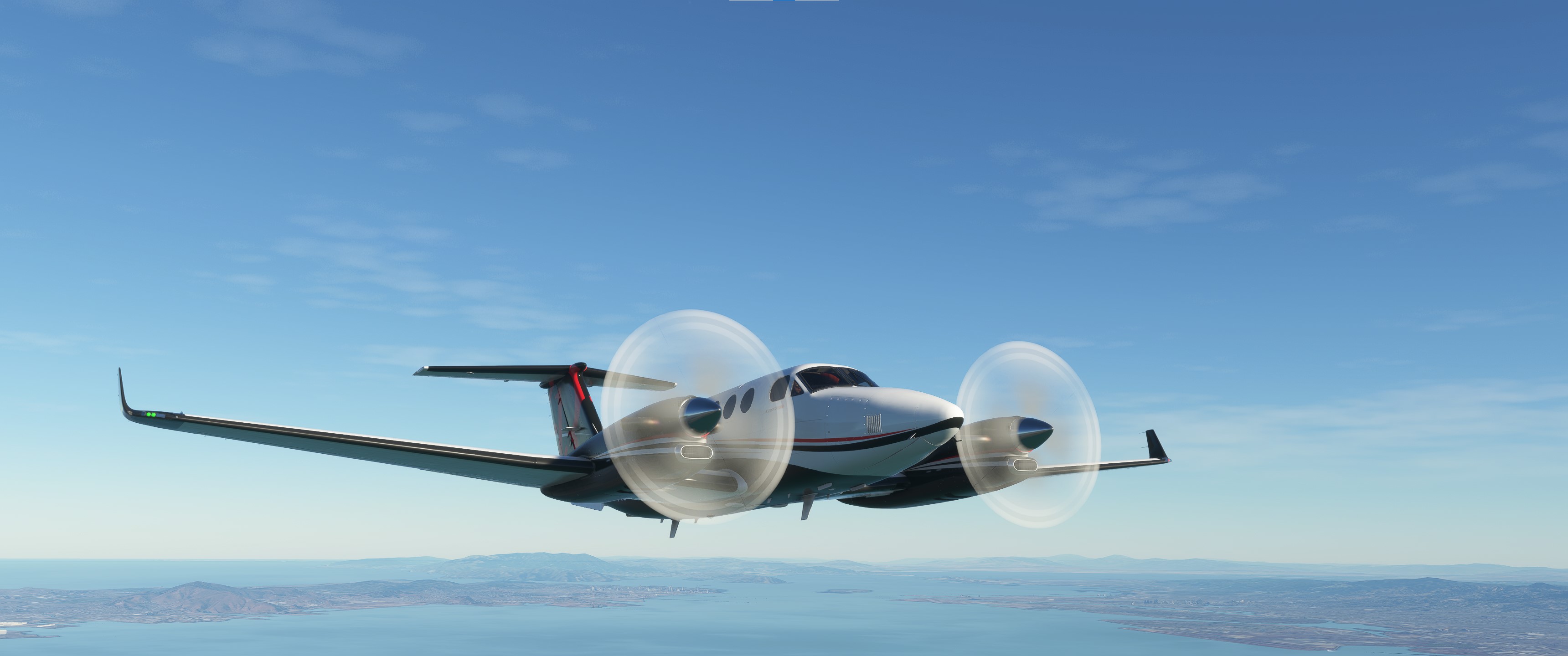
    Asobo King Air 350 Realism Mod - Image 1

    Beschreibung

    This is a modification to the MSFS 2020 default Beechcraft King Air 350i aircraft and is primarily aimed at improving the aircraft flight model to make its overall performance more closely match the actual aircraft, providing a much closer experience to flying the real aircraft.  Multiple changes have been made to the flight model and engine parameters, which are detailed in the Change Log file included in the download under the Documentation folder.  This mod does not add any new features or functionality to the original default aircraft.

    This mod is easily installed by simply unzipping the download file and copying the B300-asobo-aircraft-kingair350 folder to the MSFS Community folder.  It will then replace the existing default Beechcraft King Air 350i aircraft in the MSFS aircraft selection screen, and will also continue to utilize all of the existing available Liveries.  To uninstall the mod and return to using the MSFS default aircraft, simply remove it from the Community folder.


    Microsoft Flight Simulator © Microsoft Corporation.  Asobo King Air 350 Realism Mod was created under Microsoft's "Game Content Usage Rules" using assets from Microsoft Flight Simulator, and it is not endorsed by or affiliated with Microsoft.  

    Melden Sie sich an, um an der Diskussion teilzunehmen

    Anmelden

    Kommentare(88)

    M
    MGouge425Author

    about 9 hours ago

    TIP OF THE DAY: When entering or loading a flight plan, MSFS 2020 will automatically insert a DISCONTINUITY immediately after the last waypoint of a STAR, and before the first waypoint (IAF) of any APPROACH. Unfortunately, this discontinuity is not visible on the FMS or MAP of the default G3x in this aircraft. To prevent the aircraft from wandering off course at the discontinuity you must either remove it by adding another ENROUTE waypoint in the flight plan as described below, or you can just switch the autopilot to HDG mode when approaching the Transition (IAF) waypoint. To do this, set HDG to the heading indicated on the PFD under BRG, and then adjust it as needed to maintain the desired TRK shown. Then, switch back to NAV mode when you arrive at the IAF waypoint. This is closer to what you would actually do in the real world when following an Approach Vector instruction from ATC.
    M
    MGouge425Author

    6 days ago

    TIP OF THE DAY: When creating or loading a flight plan from WORLD MAP or directly into the FMS, MSFS 2020 will automatically insert a DISCONTINUITY between the last ENROUTE waypoint and the first APPROACH Transition (IAF) waypoint. This discontinuity is easily visible on the FMS of the Pro Line 21 mod, but it is not visible on the default G3x FMS... The discontinuity can be easily removed on the Pro Line 21 FMS by just copying the Approach Transition waypoint and pasting it to replace the discontinuity.

    The discontinuity can be removed the same way on the G3x, but you must manually enter and ADD the Approach Transition waypoint as the last ENROUTE waypoint. It should then appear in the flight plan twice, once at the end of the ENROUTE section and again at the beginning of the APPROACH section... This should also be done to remove the discontinuity after the last "A" waypoint of a STAR, which is a Manual Vector waypoint.
    M
    MGouge425Author

    10 days ago

    TIP OF THE DAY: When taxiing, you can easily determine when to stop with the nose wheel precisely on the HOLD SHORT line at the Runway, or on the STOP line at a Parking Spot, by just looking at the PFD Synthetic Vision image of the taxiway. When the line appears at the bottom edge of the PFD screen, the nose wheel is on the line.
    I

    12 days ago

    anyway of allowing cam to move into the cabin? TY for mod and regular updates.
    M
    MGouge425Author

    11 days ago

    To move through the cabin, open the BEFORE STARTING ENGINES page of the CHECKLIST and click on the Eyeball icon next to the DOORS step. This will change the camera to a rear view of the cabin. Then, just press the [ALT]+[ARROW] keys to move around the cabin, and pan and zoom normally to look out of the windows.
    M
    MGouge425Author

    12 days ago

    TIP OF THE DAY: When entering an IFR flight plan from the WORLD MAP, MSFS 2020 will automatically choose and add the Approach IAF waypoint for any ILS or RNAV APPROACH included in flight plan. The Approach IAF waypoint will be chosen based on the type and location of the last ENROUTE waypoint included in the flight plan route. The Approach IAF waypoint that is closest to the last ENROUTE waypoint will be automatically added to the GPS route by the WORLD MAP, but ATC may assign a completely different Transition IAF waypoint for the Approach. ATC uses only the last VOR or FIX (triangle shaped) waypoint to choose the closest Transition IAF waypoint to assign.

    To avoid this problem, use the following guideline when creating your flight plan route in the WORLD MAP, or when entering it directly into the G3x FMS...
    1) Always manually ADD a VOR or FIX waypoint that is close to the desired Approach IAF waypoint to ensure that the WORLD MAP and ATC will assign the same Transition IAF waypoint.
    U

    23 days ago

    This comment has been deleted
    M
    MGouge425Author

    25 days ago

    TIP OF THE DAY: To easily move through the cabin and look out the windows during flight, open CHECKLIST and select the SHUTDOWN page. Then, just click on the eyeball icon next to the DOORS step... This will change to a rear view of the cabin, after which you can press the [ALT]+[ARROW] keys to freely move around the cabin. Select the eyeball icon next to the CREW DEBRIEF step to return to the default PILOT view.
    M
    MGouge425Author

    25 days ago

    TIP OF THE DAY: To easily keep track of the wind direction during both TAXI and FLIGHT, just click on the PFD CDI indicator to split the screen and select MORE... Then, select WIND VECTOR and configure it as desired.
    M
    MGouge425Author

    25 days ago

    TIP OF THE DAY: To work correctly the Co-pilot FLIGHT ASSISTANT/AI RADIO COMMUNICATIONS feature in MSFS depends on specific communications and trigger events occurring in the correct sequence before it is enabled. It can easily get out of sync, which will prevent it from automatically acknowledging ATC transmissions as they are received, requiring you to manually trigger the response using the ATC window. To prevent this, you must always perform the following ATC communications and trigger events in the sequence shown below during a cold and dark RAMP start...

    1) IFR DEPARTURE CLEARANCE (flight plan) must be requested and acknowledged... This must be done before engine start.
    2) IFR TAXI CLEARANCE must be requested and acknowledged... This must be done only after engine start.
    3) IFR TAKEOFF CLEARANCE must be requested and acknowledged... This must be done only after stopping at the runway RED hold short crossing marks (put the nose wheel as close as possible to the marks).
    4) Enable FLIGHT ASSISTANT/AI RADIO COMMUNICATIONS... This must be done after entering the runway and stopping at the THRESHOLD. It can also be done immediately after a RUNWAY start. Also, this option must first be turned OFF under OPTIONS/ASSISTANCE/PILOTING before starting the flight.

    This sequence can be easily seen by reviewing the ATC window communications after a RUNWAY start. If it does get out of sync, it will continue to automatically tune the ATC assigned COM frequencies, but you will have to manually trigger the required acknowledgements by pressing [1] or selecting it in the ATC window.
    v

    26 days ago

    Please, make it compatible with Pro Line 21 mod, the default G3000 is a killer for this beuatiful work you did.
    M
    MGouge425Author

    25 days ago

    It has been tested for compatibility with the Proline 21 mod is currently fully compatible... But, because the Proline 21 mod also replaces the default systems.cfg file all of the changes provided in this mod to the default lighting, electrical, and hydraulic systems will be lost when the Proline 21 mod is installed. Unfortunately, this means the incorrect Landing Gear Unsafe indicator (red gear handle light) after a Ramp start, which was fixed in this mod, will revert back to the default behavior.
    B

    about 1 month ago

    Latest update on my rig has a problem with Nav (GPS) hold. It wanders. 4-5 degrees left and right constantly. Heading hold is marginally better but still has a wander of 1-2 degrees constantly. Blackhawk engine mod is good, goes like a scalded cat.
    M
    MGouge425Author

    about 1 month ago

    TIP OF THE DAY: If your flight plan includes a STAR arrival procedure, the last waypoint in the STAR will always be a VECTOR waypoint, named with an "A" followed by a number, such as "A5". This waypoint is a discontinuity in the GPS course requiring manual intervention to continue to the next waypoint. But, on this aircraft the MFD map incorrectly shows it with a normal course line to the next waypoint. To continue to the next waypoint, which is normally the Transition/IAF waypoint for the Approach, you must first open the Flight Plan on the PFD and select the waypoint. Then, select ACTIVATE LEG TO WAYPOINT. You should always do this when ATC clears you to the Approach Transition/IAF waypoint, even if you don't have a STAR procedure in the flight plan. This will prevent the aircraft from wandering off course as it approaches the Transition/IAF waypoint.
    M
    MGouge425Author

    about 1 month ago

    TIP OF THE DAY: When entering a IFR flight plan from the World Map or directly on the PFD/FMS, always enter the Approach IAF/Transition waypoint as the last ENROUTE waypoint before selecting the desired IFR APPROACH. This will force the World Map to select the correct Transition (IAF) waypoint for the Approach and ensure that the autopilot correctly follows the GPS course directly to this waypoint without deviating as you get close to it. ATC may still instruct you to use a different Transition Waypoint for the Approach, but you can ignore this instruction and just use the one you included in the flight plan.

    Also, after clearing you to descend to Approach (IAF) altitude, ATC may instruct you to climb or descend again multiple times. You should also ignore these instructions and maintain Approach altitude until you intercept the GS.
    A

    about 2 months ago

    Blacksquare King Air Compatiable?
    M
    MGouge425Author

    about 2 months ago

    This mod is for the default MSFS 2020 King Air 350i. It has also only been tested for compatibility with the Proline 21 mod, but it should work with any other mods that only update the Instrument Panel files. All Livery mods should also be compatible.
    M
    MGouge425Author

    about 2 months ago

    TIP OF THE DAY: Like most Turboprop aircraft, this aircraft has a special Throttle Range between IDLE and REVERSE called GROUND FINE that is used to control Taxi Speed and minimize the need for constant braking. In this range the Prop Pitch is set between +2° (Ground Idle) and -3° to reduce the Idle Thrust. While MSFS 2020 does not support this Throttle mode, it can be simulated by briefly setting the Power Levers to REVERSE for 1-2 seconds to smoothly slow the aircraft down during taxi without swerving left or right.

    You can also briefly press the [NUM DEL] key to evenly apply both brakes and prevent swerving while slowing down or stopping during taxi. To set the Parking Brake after stopping, continue to hold this key down and then tap the [CTRL] key.
    M
    MGouge425Author

    about 2 months ago

    TIP OF THE DAY: When making an ILS Approach, Press the [MENU] button on the center pedestal to manually select and tune NAV1 to the ILS Frequency and NAV2 to the airport VOR frequency. Then, enable the left and right BEARING POINTERS on the PFD to show NAV1 and NAV2. You can then easily see when you are within range of the VOR and ILS signals. The NAV2/VOR pointer and ID should appear about 50-60 nm out, and the NAV1/ILS pointer and ID will appear about 20-25 nm out. You can also select AUDIO and enable NAV2 audio to hear the VOR identifier code when you are within range.
    MSFS 2020MSFS 2024

    Asobo King Air 350 Realism Mod

    Enhance the realism of the default Beechcraft King Air 350i in MSFS 2020 with this mod. By adjusting the flight model and engine parameters, this modification aims to provide a more authentic flying experience. Simply install by unzipping the download file and enjoy a closer simulation to the real aircraft.


    Downloads9K
    Version1.6.5
    Dateigröße33.7 MB
    VeröffentlichtVor 3 Jahren
    AktualisiertVor 3 Wochen

    Nutzerbewertungen

    4.8

    6 Bewertungen

    5
    83%
    4
    17%
    3
    0%
    2
    0%
    1
    0%

    Versionsgeschichte

    Version 1.6.5 ⦁ The in-game CHECKLIST has been updated. ⦁ The Training Flight Plan (.PLN) files included under the FLIGHT PLANS folder have been updated. See the README file for instructions on installing these files.

    Ähnliche Addons

    Asobo C172SP AS1000 Realism Mod

    Asobo C172SP AS1000 Realism Mod

    Enhance the flight dynamics of the Asobo C172SP AS1000 aircraft with this mod, which also includes the FLOATS and SKIS variant. This modification aims to provide a more realistic flying experience by adjusting engine and flight model parameters, weight, and balance. Detailed documentation and real-world training guides are included for easy installation and compatibility with other mods.

    von MGouge425
    4.9
    Asobo Baron G58 Realism Mod

    Asobo Baron G58 Realism Mod

    Enhance the realism of the Asobo Baron G58 in MSFS 2020 with this mod. Improvements to the flight model provide a more authentic flying experience, closely matching the performance of the actual aircraft. Easily install the mod by copying the folder to the Community folder, and enjoy the detailed changes listed in the documentation. Note: Only compatible with MSFS Deluxe Edition and Premium Deluxe Edition.

    von MGouge425

    4.8
    Asobo B747-8i Realism Mod

    Asobo B747-8i Realism Mod

    Enhance your Boeing 747-8i experience with this realism mod for the MSFS 2020 default aircraft. This modification focuses on improving the flight model to closely match the actual aircrafts performance. Detailed changes can be found in the included documentation, addressing bugs like the landing gear failure. Easily installed by transferring files to the Community folder, this mod aims to provide a more authentic flying experience.

    von MGouge425

    4.7
    Asobo Icon A5 Realism Mod

    Asobo Icon A5 Realism Mod

    Enhance your flying experience with the Asobo Icon A5 Realism Mod for MSFS 2020. This mod focuses on adjusting the flight model and performance of the default Icon A5 to align it more closely with the real aircraft. From improved flight parameters to enhanced weight and balance, this mod offers a more authentic and satisfying flight experience. Easily install this mod to enjoy a more realistic flying experience with the iconic and versatile Asobo Icon A5 aircraft in Microsoft Flight Simulator.

    von MGouge425

    4.9