

Beschreibung
STILL WORKS FINE IN SIM UPDATE 12!
For those that need a more visual instruction on how to install my reshade, OverKill Simulations made a wonderfull video on it.
You can find it here: https://www.youtube.com/watch?v=YiXPrgpo8KQ
Once you have finished installing it should look like this in your settings, please check both screenshots and compare to yours:
Screenshot 1: https://prnt.sc/uNeNrwUk0fGr
Screenshot 2: https://prnt.sc/vVC4aHJsiXgl
Hi everyone, i've been working on my own custom reshade preset for a while now & decided to share it with everyone.
Hoping to tweak it down the line for even better color accuracy as i learn to master the utility a bit better.
If you find something to be looking very off, please let me know in the comments below and i'll try to address it.
ReShade is a generic post-processing injector for games and video software developed by crosire. Imagine your favorite game with ambient occlusion, real depth of field effects, color correction and more ... ReShade exposes an automated and generic way to access both frame color and depth information and all the tools to make it happen.
KNOWN ISSUE v1.3 :
Does not work with VR according to reports! (Reshade limitation)
What my Reshade preset aims to do :
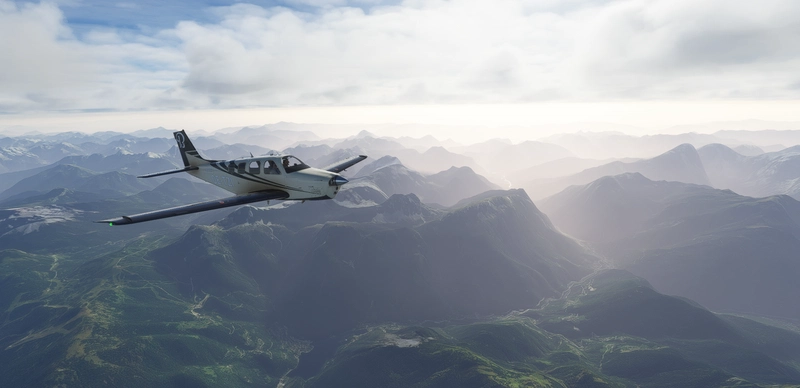
- Correct the tone of the sim that was red shifted.
- Reduce the white haze over the image, giving the image a more contrasty solid look.
- Make clouds white again, removed yellow/beige tint.
- Change the colors of the atmosphere
- With reshade you can't selectively choose trees, displays, cockpit, skybox for example.
- It can't fix hardcoded issues of the sim itself in terms of colorgrading.
MS STORE VERSION INSTRUCTIONS (please read it's important!):
1. Download & Extract the folder anywhere.
2. Copy ''ReshadeInjectUWP'' to ''C:\%UserProfile%\'' (you can copy paste this address into any folder it's bar on top and it will open the folder for you)
3. Copy ''FS2020-Reshade-STARTUP.bat'' to your desktop.
4. That's it the installation part is done, now all you have to do is run the .bat file from your desktop. (right click run as admin to make sure it starts up properly)
(you need to run the .bat every single time you want to start up the sim, it will launch the sim automatically from the .bat)
5. When you load the sim you will be greeted with a reshade message on top which means it is working.
press the HOME key to bring up the reshade menu.
6. In case the shaders haven't been activated enable the single shader: ''LUTTools.fx''
7. Go to the settings tab and manually select the shaders(effects) & textures folders again, or else the preset won't work.
Click the + icon next to the paths and select the folders,
after that go to the main window (home) and on the bottom click on the button that says "RELOAD".
Screenshot 1: https://prnt.sc/uNeNrwUk0fGr
Screenshot 2: https://prnt.sc/vVC4aHJsiXgl
If you see any changes, it means it's working.
I have dropped steam support fully, i will only support MS Store versions of the sim!
Häufig gestellte Fragen
FinalLight Reshade preset : Realistic colors and tone fixes
Custom LUT Based ReShade preset for Microsoft Flight Simulator 2020. 0 FPS impact and color graded professionally to make your sim look like it's supposed to. ReShade is a generic post-processing injector for games and video software developed by crosire.
Vom Ersteller gelöscht
Dieses Addon wurde vom Ersteller gelöscht und ist nicht mehr verfügbar.

Nutzerbewertungen
82 Bewertungen
Versionsgeschichte
updated reshade to the latest version, current version had some issues causing CTD's mainly on AMD cards but happened with Nvidia cards as well. No changes were made to the preset itself. Just replace "Reshade64.dll" with the one in your folder if you allready installed the previous version.
Melden Sie sich an, um an der Diskussion teilzunehmen
AnmeldenKommentare627
Anyone who has the Microsoft store version and is having the issue where you run the BAT file and your sim doesn't open here's how you fix it - Firstly, follow the download steps as normal then go into your ReshadeInjectUWP folder and right click the inject64.exe then click properties then onto compatibility, check the 3 boxes at the bottom "Disable full-screen optimisations" "Run this program as an administrator" and "Register this program for restart" click apply and ok then exit, after that step make sure the BAT file is on your desktop and run it as administrator and your Simulator should load, I suggest restarting your pc before you start the simulator after completing the steps, If you have any questions or if It doesn't work give me a dm and I will try and help you.
Quick note: MUST run in windowed mode - don't remember seeing that anywhere!
no you don't have to do that
Hi Mitchelel,
Do you know why this Reshade program standard ask for the Lut.png?
The file included has the name FL-LUT-13.png
My FS2020 screen became black when applying the LuTTools.fx
My sollution was to rename the FL-LUT-13.png into Lut.png
Now it's working perfect!
Thanks for sharing this Reshade program!
Hans
no this will not activate my colorgrading, you really need my lut name in there.
if you have a black screen that means your texture folder location is not correct.
please check your reshade settings again, it needs to have 1 line with path to shaders and 1 for textures.
after that go to the home page and press reload at the bottom.
LUT.png = standard lut without colorgrading. so basically useless.
you need my full lut name
I've discovered the problem!
In the LuTTools.fx was the line:
// Define LUT texture name
#ifndef LUT_FILE_NAME
#define LUT_FILE_NAME "Lut.png"
I edited with notepad into:
// Define LUT texture name
#ifndef LUT_FILE_NAME
#define LUT_FILE_NAME "FL-LUT-13.png"
Now its OK!
Anyone who has the Microsoft store version and is having the issue where you run the BAT file and your sim doesn't open here's how you fix it - Firstly, follow the download steps as normal then go into your ReshadeInjectUWP folder and right click the inject64.exe then click properties then onto compatibility, check the 3 boxes at the bottom "Disable full-screen optimisations" "Run this program as an administrator" and "Register this program for restart" click apply and ok then exit, after that step make sure the BAT file is on your desktop and run it as administrator and your Simulator should load, I suggest restarting your pc before you start the simulator after completing the steps, If you have any questions or if It doesn't work give me a dm and I will try and help you.
When I run the BAT file, even as administrator my sim doesn't start, I tried restarting my PC and still doesn't work, any ideas?
can you try the solution from thomasboddum10 in the comments?
Also the bat only works for msstore versions not steam just in case.
The preset is amazing and worked perfectly when I installed it the other day. However, when I loaded up today, nothing happened when I pressed the home key. I ran the .bat as an admin (I always do), I tried rebooting and even reinstalling the preset. Also checked for anti-virus interference and nothing there either. Any ideas? I really want to be able to use this amazing preset but can't get my head around why it isn't working.
I have no clue why some people can't launch it after the 2nd time or some even at all.
I've looked into it, but all seems correct in my upload.
It didn't even fail once to start on my end and i use it almost every single day with right click run as admin.
Must be on my end then. Thanks for your quick response, I’ll see if I can find a solution :)
Found a solution. Went to the "ReshadeinjectUWP" folder and right clicked "inject.exe" and ticked the box saying "run this program as administrator". This works for me.
hmm that's interesting, i'll keep that in mind in case someone else comes with the same problem.
Hi, I have the exact same issue as you, It feels like I've tried everything, I did what u said and right clicked the inject.exe and checked "open with admin" but even if I run the bat file as admin my the command prompt opens for a split second then closes and my sim doesn't open, thanks.