
Beschreibung
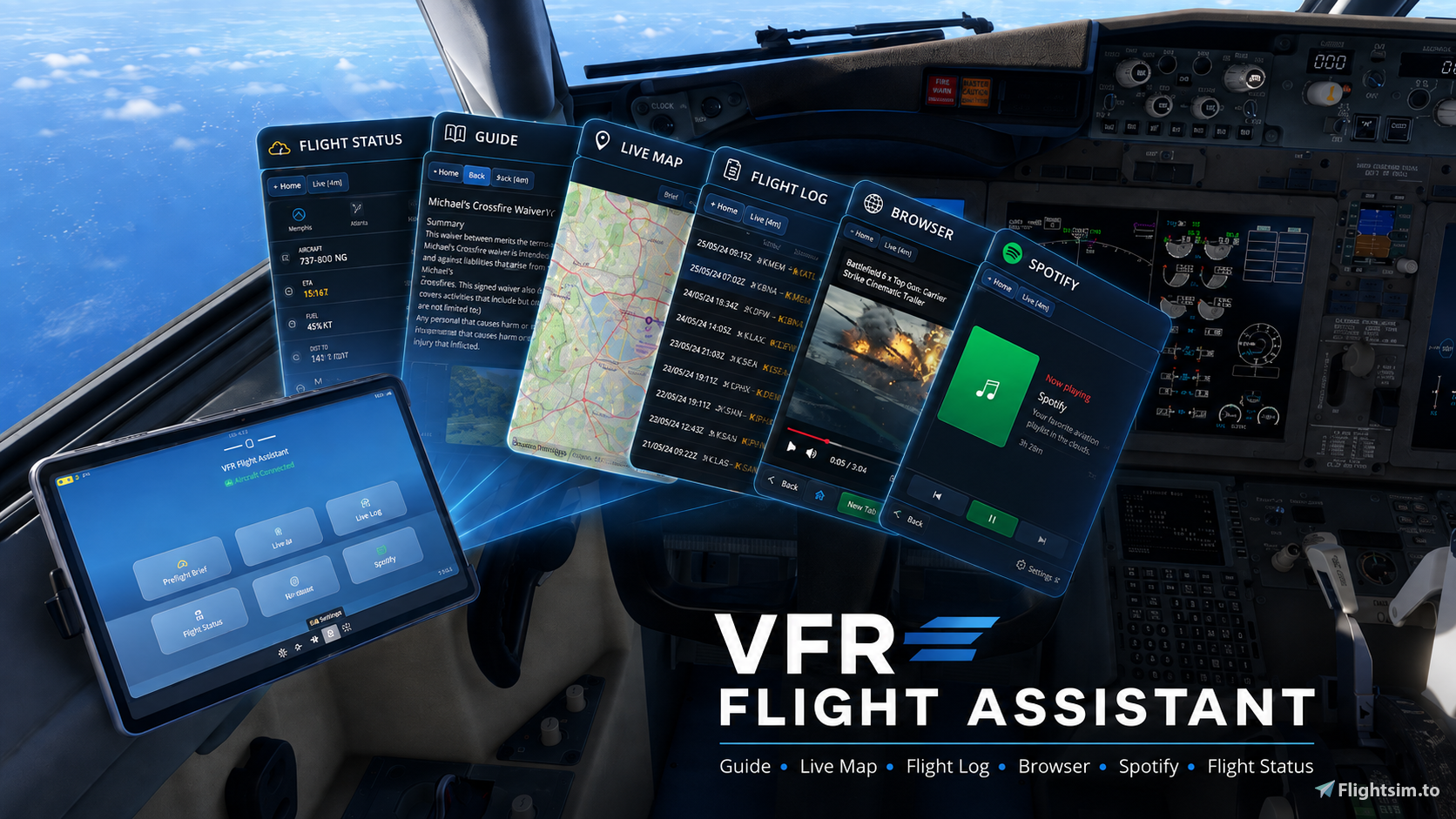
VFR Flight Tour Guide Assistant is a companion for Microsoft Flight Simulator 2024. It combines an AI sightseeing guide, a voice-enabled copilot, flight records, and route maps in a Windows desktop application, an optional in-game EFB app named VFR Assistant, and an optional in-game Toolbar panel named VFR Assistant.
Even if you don't want to set up a Gemini API key or use the AI Copilot features, you can still use the built-in Spotify player, live moving map with flight route, flight history tracking, and more.
Features
Main features
- Optimized for VR. You don't need any other tools to enjoy VFR flying in VR.
- Discover nearby attractions and display selected sights directly on the live map.
- Learns your preferences and speaking style through conversation, fully personalizing your Copilot.
- Relive past journeys through detailed flight records, altitude profiles, and interactive route maps.
- Spotify for Windows integration with the EFB. You need to install the Spotify app for Windows to use this feature.
- Desktop browser streaming to the EFB, including browser navigation and interactive animation and video playback.
- Wikipedia integration in the EFB, with sightseeing images and full Wiki pages available directly from scanned attractions.
- Flight Status page with a seven-stage flight-progress strip, aircraft and phase display, flight instruments, systems, fuel, route points, and lights.
- Configurable voice-enabled copilot conversations through Gemini Live.
- Optional Local TTS Add-on support for improved English and Chinese narration.
- Optional Toolbar Add-on integration for the VFR Assistant, including the guide, live map, flight records, and Spotify controls. This feature requires the separately distributed Toolbar Add-on.
More features
- Finds nearby sightseeing locations and sorts them by distance.
- Shows each location's name, relative bearing, and distance in nautical miles.
- Provides sightseeing, cultural, historical, aerial-identification, and VFR guidance.
- Gives priority to useful locations ahead of the aircraft.
- Offers manual and optional automatic scanning.
- Supports English, French, German, Spanish, Brazilian Portuguese, Russian, Simplified Chinese, Traditional Chinese, Japanese, and Korean.
- Supports voice input, spoken narration, and optional Gemini Live conversation.
- Offers selectable concise, normal, and detailed copilot conversation styles.
- Provides proactive copilot alerts for important aircraft, terrain, fuel, weather, route, and landing conditions.
- Learns a local pilot profile from meaningful captain speech between confirmed takeoff and landing, then combines it with compatible flight-history summaries for future Live conversations.
- Gives the copilot awareness of the aircraft's current flight state, weather, fuel, controls, warnings, and flight phase.
- Gives the copilot access to the current route, airports, runways, procedures, waypoints, airways, and planned cruise altitude when available.
- Shows Live conversation history in the EFB.
- Lets the in-game EFB display and control play, pause, previous, and next for the active Spotify for Windows desktop session without storing Spotify credentials.
- Lets you mute the copilot for the current flight from the EFB Live page.
- Records up to 500 flight sessions with detailed tracks, altitude profiles, takeoff and landing events, and landing information.
- Shows current and recorded tracks on desktop and EFB maps.
- Shows the current flight-plan route and waypoints on the EFB Live map.
- Imports local POI CSV files, searches them before Gemini nearby-place queries, and displays nearby imported POIs on the Live map.
- Lets you delete selected flight records from the desktop application.
- Provides independently configurable Live TTS, Gemini TTS, Local TTS, and Windows TTS narration.
- Supports an optional Local TTS Add-on for improved English and Chinese narration.
- Displays remaining fuel in pounds, remaining percentage, estimated range, and estimated flight minutes, with whole-row caution and critical colors below 20% and 10%.
- Lets you enable or disable Live safety voice warnings from the EFB or desktop settings.
- Uses concise localized Active WP and Subsequent WP labels and compact vector icons throughout the Flight Status page and Home menu.
- Automatically retries the simulator connection when MSFS 2024 is started after the desktop application.
Requirements
- Windows 10 or Windows 11, 64-bit.
- Microsoft Flight Simulator 2024.
- A Gemini API key for AI features. The free tier may be sufficient, depending on current quota and availability.
- You can still use the Live map, browser, flight plan, flight records, and Spotify player without a Gemini API key.
- Internet access for AI requests, maps, and place information.
- A microphone for voice input.
Package contents
VFR-Flight-Tour-Guide-Assistant-v1.14.7/
  Desktop/
  EFB/
    vfr-flight-tour-guide-assistant-efb/
  README.md
  CHANGELOG.md
The optional Toolbar Add-on is distributed separately:
VFR-Flight-Assistant-Toolbar-Add-on-v1.14.7/
  vfr-flight-tour-guide-assistant-toolbar/
  README.md
Desktop installation
- Extract the release archive to a writable folder.
- Keep all files in the
Desktopfolder together. - Run
MSFS2024_AIAssistant.exe. - Start MSFS 2024 and begin a flight.
No separate .NET installation is required.
EFB installation
- Close MSFS 2024.
- Copy the complete folder below into the MSFS 2024
Communityfolder:EFB\vfr-flight-tour-guide-assistant-efb Confirm these files are directly inside the copied folder:
...\Community\vfr-flight-tour-guide-assistant-efb\manifest.json
...\Community\vfr-flight-tour-guide-assistant-efb\layout.json
Start MSFS 2024 and begin a flight.
- Open the EFB app list and select VFR Assistant.
- Keep the desktop application running while using the EFB app.
If the app does not appear, remove any older copy of the same EFB package and make sure it was not placed inside an extra folder level.
Optional Toolbar Add-on
Install the separately distributed Toolbar Add-on when you want to open VFR Assistant directly from the MSFS 2024 in-game Toolbar.
- Close MSFS 2024.
- Copy
vfr-flight-tour-guide-assistant-toolbarinto the MSFS 2024Communityfolder. - Confirm that
manifest.jsonandlayout.jsonare directly inside the copied package folder. - Start the desktop application, then start MSFS 2024.
- Open the in-game Toolbar and select VFR Assistant.
The Toolbar Add-on uses the same local desktop bridge as the EFB. Keep the desktop application running and remove older copies of the same Toolbar package before installing this version.
First-time setup
- Open the desktop application's Settings tab.
- Select the global language.
- Create a Gemini API key at Google AI Studio API keys, sign in with your Google account, choose Create API key, and copy the key into the desktop application's Gemini API Key field.
- Select the microphone input device.
- Choose the desired text, narration, and Live conversation options.
- Save the settings.
English is the default language. No API key or personal settings are included in the release. Keep your API key private and do not paste it into logs, screenshots, or public repositories.
Gemini Free Tier can generally be used for sightseeing searches and text-guide features, subject to current availability and quotas. Voice recognition, online narration, advanced models, and Live conversation may require an eligible Tier 1 or paid account. Optional Gemini voice features can be left disabled when they are not required.
Live TTS, Gemini TTS, Local TTS, and Windows TTS can be enabled or disabled independently. Guide narration uses only one provider at a time in this order: Live TTS when a Live conversation is connected, Gemini TTS, Local TTS, then Windows TTS. A lower-priority provider is used only when the selected higher-priority provider is unavailable or fails before playback starts. Gemini Live conversation is controlled separately.
Local TTS is an optional separate add-on for English and Chinese. Install and start the Local TTS Add-on before enabling it in Settings.
Using the guide
- Start the desktop application.
- Start a flight and wait for the simulator connection.
- Select Scan now, or enable automatic scanning.
- Select a result to read the complete guide.
- Use the narration button to hear the selected guide.
- Enable voice recognition or Live conversation to speak with the copilot.
The application does not search for sightseeing locations until a valid simulator position is available.
Flight plan and copilot
- The copilot can answer questions about the current aircraft and flight.
- Route questions can include departure and destination airports, runways, procedures, waypoints, airways, approach information, and cruise altitude.
- Airport and waypoint names are shown together with their codes when available.
- If the route is changed in the simulator, use Sync route on the EFB Live page when an immediate refresh is needed.
Flight records and maps
- Open Flight Log on the desktop to view up to 500 sessions.
- Select a session to display its recorded route and altitude profile.
- Review recorded takeoff and landing events and landing information.
- Delete an unwanted flight record from the desktop application.
- Use the mouse wheel to zoom and drag to pan.
- Double-click the desktop map to fit the complete route.
- In the EFB, use Records for earlier flights and Live for the current route.
- Use the EFB map controls to zoom, fit the route, or centre the aircraft.
- The EFB Live map displays the current flight-plan route and waypoints when available.
- In Live, use
Lto lock or unlock the newest conversation text, the up/down arrows to view earlier or later text, andZto cycle text size through 100%, 150%, and 200%. The Scan sightseeing list has the scroll arrows; the sightseeing detail panel also hasZfor its body text only.
Flight Status
- Flight Status is a new EFB page in version 1.12.0. Open it from the EFB home menu.
- The page shows the aircraft title directly above the current flight phase.
- Flight instrument rows show IAS, altitude, magnetic heading, vertical speed, ground speed, AGL, QNH, density altitude, OAT, wind, visibility, and surface condition. QNH defaults to inHg and can be switched to hPa.
- Systems show engine state, parking brake, landing gear, and flaps.
- Flight Status uses advisory color bands for overspeed, excessive vertical speed, OAT, parking-brake state, flap overspeed, landing gear state, and low-approach sink rate.
- Route rows show the active waypoint and subsequent waypoint with bearing, distance, and ETA when available.
- Fuel information shows remaining pounds, remaining percentage, estimated range, and estimated flight minutes. The fuel row turns yellow below 20% and red below 10%.
- The desktop application remains the source of flight phase and route context; the EFB displays the latest bridge data.
- The EFB Live status uses the same presentation as the other EFB pages. The desktop connection is handled by the application and is not shown as a separate status item on this page.
Troubleshooting
The desktop application does not connect
- Begin a flight and wait until loading is complete.
- Keep the desktop application running.
- The application retries the simulator connection automatically after MSFS 2024 starts. If it still does not connect after a short wait, verify that only one desktop instance is running and then restart the desktop application.
The EFB app is waiting for the desktop
- Start the desktop application.
- Allow it through a Windows firewall prompt if one appears.
- Confirm only one copy of the desktop application is running.
The EFB app does not appear
- Confirm
manifest.jsonandlayout.jsonare directly inside the installed package folder. - Remove older copies of the package.
- Restart MSFS after installing the package.
Voice input is unavailable
- Select the correct input device in Settings.
- Confirm Windows microphone permission is enabled.
- Verify that the microphone works in another application.
An online feature is unavailable
- Check the API key, selected options, internet connection, and account availability.
- Disable optional online voice features if you want to continue with available local speech features.
Privacy and safety
The release does not contain the developer's API key, personal settings, logs, speech cache, pilot profile, or flight-history data. Your own settings, flight records, and generated pilot profile are stored locally after first use. Meaningful captain speech from a completed flight may be sent to Gemini once after landing to update that profile; copilot replies are not included, and the raw flight transcript is not saved locally by this feature. Requests sent to online services are subject to those providers' terms and privacy policies.
This application is a sightseeing aid, not a certified navigation source. Always follow aircraft limitations, charts, weather information, and normal flight-planning practices.
Version
Release 1.14.7
VFR Assistant (POI Scanner&Wiki, AI Copilot, Flight Logs, Browser, Spotify, Voice Commands and more)
VFR Flight Tour Guide Assistant is an all-in-one VFR companion for Microsoft Flight Simulator 2024, optimized for VR. It combines an AI sightseeing guide, a voice-enabled copilot, proactive flight safety alerts, detailed flight recording, interactive route maps, browser and Spotify integration in a Windows desktop application with an optional in-game EFB app and a toolbar app. Discover nearby attractions, receive intelligent navigation and safety assistance, and relive every flight with comprehensive logs and altitude profiles—all without needing additional other tools.


Nutzerbewertungen
5 Bewertungen
Versionsgeschichte
## 1.14.7 - Changes since 1.14.1 ### Minor changes - Refined the EFB pages and improved icon and button visuals. - Improved voice conversation behavior and added an option to use Gemini Flash Lite only for Flash queries. - Added a keyboard/HOTAS mute binding to toggle copilot voice output. - Adjusted EFB/Canvas animation playback mode following the MSFS SU7 update.

Melden Sie sich an, um an der Diskussion teilzunehmen
AnmeldenKommentare(72)
4 days ago
about 4 hours ago
absolutely must-have for vfr world tours, great job!
Perhaps a stupid question: the AI can talk and listen a lot of languages. It's possible to add more languages, for example, HU-hu (hungarian)?
Just the live tour guides about the POI-s, all other things are fine with english...
4 days ago
3 days ago
6 days ago
4 days ago
3 days ago
7 days ago
Dieser Kommentar wurde gelöscht
14 days ago
5 days ago
4 days ago
4 days ago
about 9 hours ago
about 1 month ago
Is it possible to show all scanned scenic places in the flight plan or 'Live' tab?
Currently, I have to select a place in 'Guide' -> click on 'map', and do so for each place to see where they are.
Still works, but with our chaotic 60+ waypoint, 2-hour bush flights zigzagging all over the map, it can become a lot to juggle.
about 1 month ago
24 days ago
20 days ago
Next to that, the amount of POI's can be quite inconsistent? Sometimes there's only 3, other times there's 1. Even when flying over big cities like new york/london. Is it possible to receive a larger amount of POI's? Maybe N as defined in the settings?
20 days ago
The same applies to which discovered POIs appear on the Live Map — I’ll take another look at that part to make sure we’re not losing any valid results between the AI response and the map.
I’m also considering adding an option to import POI databases from sources such as BushTalkRadio or Little Navmap. That would provide a much larger and more consistent set of POIs, although they would be predefined database entries rather than dynamically discovered by the AI.
20 days ago