
Beschreibung
Landing Guide 2.3.0
- Helicopter Hovering Mode implemented based on an idea from Matthew Crawford.
In hovering mode, a stick-movement guide appears to help maintain hover, with the turn rate and direction displayed as a curved indicator. When landing, face forward toward the ground, and use this as a reference with side-glances when visibility is poor or in the air.
Landing Guide 2.2,0
1. Overview
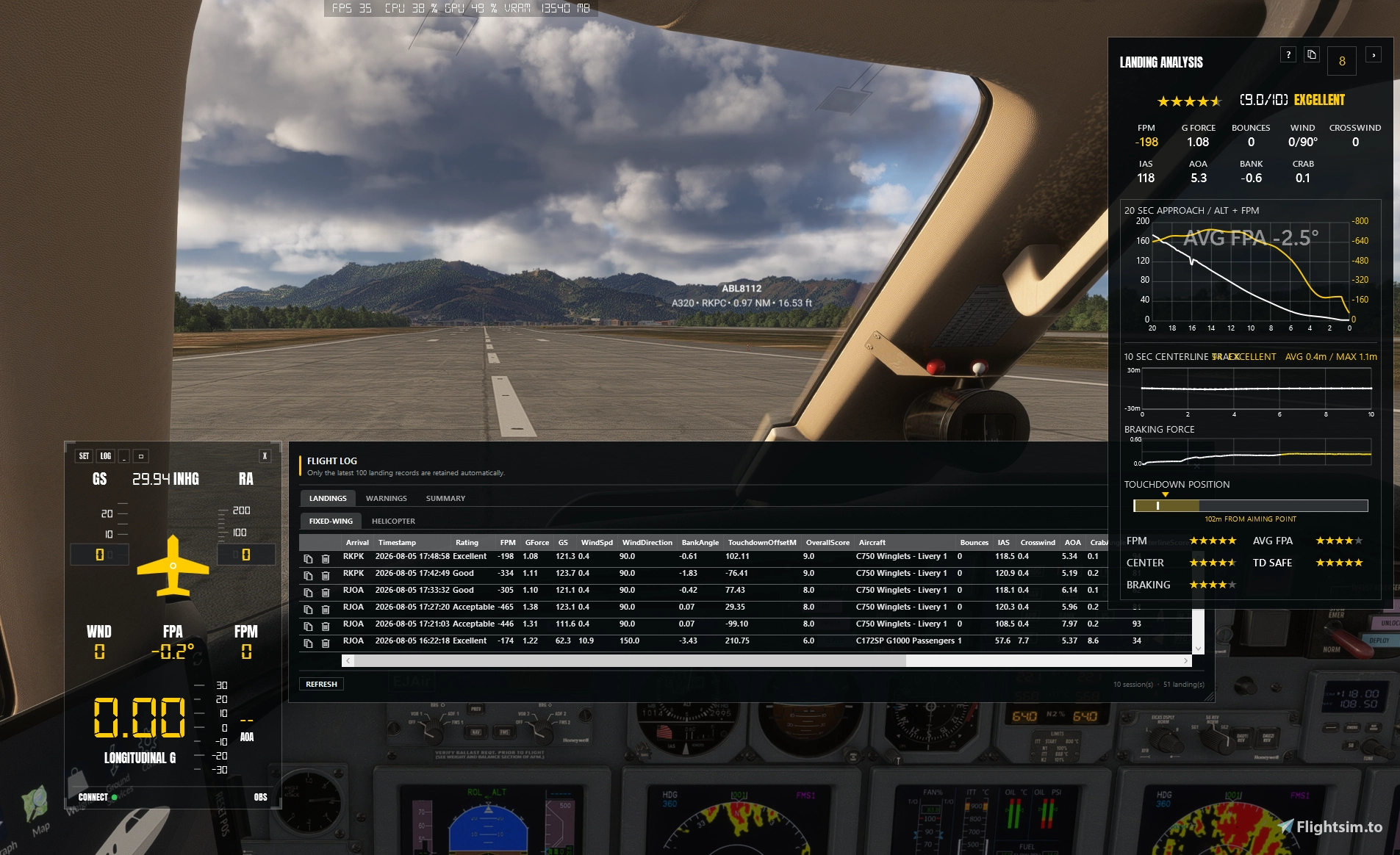
Landing Guide 2.0 is a compact HUD-style flight and landing assistant for Microsoft Flight Simulator 2024. It displays live approach data, analyzes fixed-wing and helicopter landings, records landing history, and can control an external recording application through configurable hotkeys.
Landing Guide is an advisory tool. It is not certified avionics and must not replace aircraft limitations, checklists, operating manuals, charts, ATC instructions, or pilot judgment.
Contents
- Requirements and Installation
- Main HUD
- Settings and Auto Record
- Alert System
- Landing Analysis Window
- Fixed-Wing Rating Criteria
- Helicopter Rating Criteria
- Overall Rating
- Flight Log
- Copy for AI
- Configuration and Persistence
- Troubleshooting
2. Requirements and Installation
Requirements
- Microsoft Flight Simulator 2024
- Windows 10 or Windows 11, 64-bit
- An external recording application only if Auto Record is used
Installation
- Extract the complete distribution ZIP to a writable folder.
- Keep the following files together:
Landing Guide.exeMicrosoft.FlightSimulator.SimConnect.dllSimConnect.dll- All other files supplied in the package
- Run
Landing Guide.exe. - Start or continue a flight in MSFS.
The Anton and Digital-7 fonts are embedded in the application and do not require a separate installation.
Connection behavior
- Landing Guide connects to SimConnect automatically.
- The status bar shows
CONNECTwith a green indicator when aircraft data is available and a red indicator when disconnected. - Alert and landing windows are suppressed while no aircraft is spawned, the simulation is stopped, or the simulator is paused.
3. Main HUD
Top Buttons
- Set : Opens the Settings panel
- Log : Open the Flight Log. Press again to close it
_ :Minimizes the HUD to the small- Square : Restores the HUD to 100% size.
X :Exits Landing Guide.
Window movement and resizing
- Drag the HUD to move it. Position changes snap to 10-pixel increments.
- Drag a corner bracket to resize the complete HUD proportionally.
- The selected HUD size and position are stored in
Settings.ini. - Click the square reset button to return to the original 100% size.
- Click the minimize button or double-click the aircraft symbol to enter Mini Mode.
- Click the
LGicon to restore the HUD.
Flight data
GS/IAS :Ground speed or indicated airspeed in knots. Click the speed area to toggle. The selected mode is saved immediately.HPA/INHG :Sea-level pressure in hectopascals or inches of mercury. Click the pressure display to toggle.RA/ALT :Radar altitude or indicated altitude in feet. Click the altitude area to toggle.WNDAmbient wind speed in knots. Its color follows the calculated crosswind level.FPA :Flight-path angle calculated from vertical speed and ground speed. Negative values indicate descent.FPM :Vertical speed in feet per minute.- Aircraft symbol: Automatically cha
nges for GA, turbo/jet, heavy, and helicopter categories.
- Wind arrow : Shows wind direction relative to aircraft ground track.AOACurrent angle of attack and a scale from +30 to -30 degrees. Out-of-range indication turns red.
Speed and altitude tapes
- The speed tape moves in 5-knot steps and labels every 10 knots.
- The altitude tape moves in 20-foot steps and labels every 100 feet.
- Current-value boxes use Digital-7 Mono and remain centered while the scales slide behind them.
Wind colors
The wind arrow and WND value use the absolute crosswind component, not total wind speed.
- | Aircraft category | Orange | Orange-red | Red |
- | GA | 8 kt | 12 kt | 15 kt |
- | Turbo/Jet | 12 kt | 18 kt | 22 kt |
- | Heavy | 15 kt | 25 kt | 35 kt |
- | Helicopter | 5 kt | 8 kt | 12 kt |
Below the first threshold the display is yellow. These defaults can be changed in the aircraft sections of Settings.ini.
Below 100 ft and touchdown
- Below 100 ft RA, the HUD expands and displays a large radar-altitude value and the AOA scale.
- After fixed-wing touchdown, the large value changes to longitudinal G for braking monitoring.
- Aim to keep braking longitudinal G below approximately
0.30 Gfor smooth deceleration. - After helicopter touchdown, radar altitude remains displayed instead of longitudinal G.
Status bar
- | Left | SimConnect connection state. |
- | Center | Recording state, countdown, completion message, or active warning text. |
- | Right |
OBSwhen OBS is running. This is process detection only and does not confirm OBS recording state. | - Warning text is shown in the status bar even when the separate Alert Window option is disabled.
4. Settings
Display options
- |
GLASS OPACITY| Controls the main HUD and alert background opacity from 0% to 100%. | - |
ALERT WINDOW| Enables or disables the separate alert overlay. Status-bar warnings remain active. | - |
LANDING ANALYSIS WINDOW| Enables the post-touchdown Landing Analysis window. | - |
SIMPLE| Available when Landing Analysis Window is enabled. Shows only the compact landing result. |
Simple mode emphasizes touchdown FPM, G-force, and the final rating without the full chart set.
Settings and Landing Analysis backgrounds are fixed at 90% opacity. Window borders, separators, brackets, checkbox borders, and input borders are fixed at 20% opacity.
Auto Record
Auto Record sends the configured keyboard shortcuts to an external recording application. Landing Guide does not record video itself.
- |
AUTO RECORD| Enables automatic start and stop hotkey transmission. | - |
START BELOW RA (FT)| Radar-altitude threshold used to start recording. | - |
START KEY| Hotkey sent to start recording. Click the box and press the complete key combination. | - |
STOP KEY| Hotkey sent to stop recording. | - |
STOP AFTER LDG (SEC)| Fixed-wing delay between touchdown and automatic stop. Default fallback is 10 seconds. |
Hotkeys are shown in a readable form such as ALT+F9. Key capture suppresses forwarding while the Settings box is learning the combination.
Automatic start sequence
Normal approach:
- The aircraft climbs to at least
Start RA + 50 ft. - Landing Guide enters the armed state.
- The aircraft crosses the configured RA from above to below.
- The start hotkey is sent once.
Starting below the threshold:
- If Landing Guide first confirms a valid airborne aircraft while RA is already at or below the configured threshold, the start hotkey is sent without requiring the armed state.
- Menu, globe, stopped, paused, and on-ground states do not trigger this behavior.
Automatic stop sequence
- Fixed-wing: the stop hotkey is sent after
STOP AFTER LDG (SEC). - Helicopter: the stop hotkey is always sent 3 seconds after touchdown.
- If ESC, Pause, or SimStop interrupts an automatically started recording, the pending countdown is canceled and the stop hotkey is sent immediately.
- A recording detected as manually started is not stopped automatically. It remains active until the user sends the configured stop hotkey.
RECORDING COMPLETEremains in the status bar for 10 seconds.
If another application does not receive hotkeys, run Landing Guide at the same privilege level as the target application. Administrator mode may be required when the recording application is elevated.
5. Alert System
The alert overlay uses a no-activate window and should not take focus from MSFS. The alert title, value, and detail are displayed at 50% opacity. Alert events are also written to the warning log.
Fixed-wing alerts
- |
STALL RISK| AOA at or above 12.0 degrees and RA below 2,000 ft | 15 sec | - |
SINK RATE| Vertical speed below -1,500 FPM between 10 and 1,000 ft RA | 10 sec | - |
HARD LDG| Touchdown vertical speed below -600 FPM | Per touchdown | - |
OVERSPEED| Touchdown ground speed above 160 kt | Per touchdown |
The fixed-wing thresholds and alert duration can be changed in the [Alerts] section of Settings.ini.
Helicopter alerts
- |
LOW ROTOR RPM| Rotor monitoring is armed, rotor RPM is at least 5% but below 90% | 10 sec | - |
ROTOR OVERSPEED| Rotor RPM above 110% | 10 sec | - |
HIGH TORQUE| Engine torque above 100% | 10 sec | - |
VRS RISK| IAS below 30 kt, descent below -500 FPM, RA 20-1,000 ft | 10 sec | - |
SINK RATE| Descent below -1,000 FPM, RA 10-300 ft | 10 sec | - |
BANK ANGLE| Absolute bank above 30 degrees, RA 5-100 ft | 10 sec |
Low-rotor monitoring is armed only after rotor RPM remains between 90% and 110% for at least 2 seconds. This prevents false warnings while the helicopter is not operating.
Alert thresholds are generic advisory values. Always use the limitations and procedures for the specific aircraft.
6. Landing Analysis Window
Window operation
- The window slides in from the right after touchdown.
- Click
>to slide it out and close it. - The countdown closes the window automatically when it reaches zero.
- Click the countdown control to pause automatic closing.
- Click the copy icon to copy analysis data for an AI service or another application.
- Click
?to open the built-in explanation window. - Opening an item from Flight Log updates the existing Landing Analysis window instead of creating duplicates.
- Log-replayed analysis can be displayed even when the simulator is paused or stopped.
Fixed-wing charts
- |
20 SEC APPROACH| Altitude, FPM, and average FPA during the final approach. | - |
10 SEC CENTERLINE TRACK| Lateral distance from runway centerline during rollout. Color changes with deviation. | - |
BRAKING FORCE| Brake input and longitudinal deceleration after touchdown. | - |
TOUCHDOWN POSITION| Runway, touchdown zone, aiming-point offset, and touchdown distance from threshold. |
The fixed-wing rollout analysis normally lasts 10 seconds. If ESC, Pause, or SimStop occurs first, Landing Guide finalizes the available samples immediately. Metrics without enough data are shown as N/A.
Helicopter charts
- |
20 SEC APPROACH / GS + FPM| Ground speed and vertical-speed history. | - |
10 SEC HOVER / DRIFT TRACK| Horizontal motion near touchdown. | - |
TOUCHDOWN DRIFT| Combined lateral and longitudinal speed around touchdown. | - |
TOUCHDOWN ACCURACY| Distance from the registered MSFS helipad center. |
Helicopter analysis completes after approximately one second of touchdown processing; it does not wait for the fixed-wing 10-second rollout.
7. Fixed-Wing Rating Criteria
FPM rating
Only downward touchdown speed is rated.
- | Absolute sink rate | Rating |
- | 0-200 FPM | 5 stars |
- | 201-350 FPM | 4 stars |
- | 351-500 FPM | 3 stars |
- | 501-700 FPM | 2 stars |
- | Above 700 FPM | 1 star |
Average FPA rating
Average FPA is calculated from the final 20 seconds. The rating uses deviation from an absolute 3.0-degree path.
- | Deviation from 3.0 degrees | Rating |
- | Up to 0.3 deg | 5 stars |
- | Up to 0.6 deg | 4 stars |
- | Up to 1.0 deg | 3 stars |
- | Up to 1.5 deg | 2 stars |
- | More than 1.5 deg | 1 star |
Centerline rating
The centerline score combines average and maximum absolute lateral offset during rollout:
Average component = 100 x clamp(1 - average offset / 8 m)
Maximum component = 100 x clamp(1 - maximum offset / 15 m)
Centerline score = 70% average component + 30% maximum component
Stars = score / 20, rounded to the nearest half star
At least 10 valid samples over at least 5 seconds are required. Otherwise the rating is N/A.
Centerline text grades:
- | Score | Grade |
- | 90-100 | Excellent |
- | 80-89 | Good |
- | 70-79 | Acceptable |
- | 50-69 | Poor |
- | Below 50 | Off Center |
Touchdown-zone rating
Distance is measured from the runway threshold. The touchdown-zone end is the smaller of 900 m or one-third of runway length.
- | Touchdown distance | Rating |
- | 200-450 m | 5 stars |
- | 100-600 m | 4 stars |
- | Inside calculated touchdown zone | 3 stars |
- | Up to 300 m beyond touchdown zone | 2 stars |
- | Farther | 1 star |
- | Invalid runway reference | N/A |
Braking rating
Landing Guide ignores the first second after touchdown, selects the strongest 20% of valid longitudinal deceleration samples, and averages them.
- | Braking G | Rating |
- | Up to 0.20 G | 5 stars |
- | Up to 0.30 G | 4 stars |
- | Up to 0.40 G | 3 stars |
- | Up to 0.50 G | 2 stars |
- | Above 0.50 G | 1 star |
8. Helicopter Rating Criteria
FPM rating
- | Absolute sink rate | Rating |
- | 0-100 FPM | 5 stars |
- | 101-200 FPM | 4 stars |
- | 201-300 FPM | 3 stars |
- | 301-450 FPM | 2 stars |
- | Above 450 FPM | 1 star |
Stability rating
This is the standard deviation of vertical speed during the final 10 seconds.
- | Up to 75 FPM | 5 stars |
- | Up to 125 FPM | 4 stars |
- | Up to 200 FPM | 3 stars |
- | Up to 300 FPM | 2 stars |
- | Above 300 FPM | 1 star |
Hovering rating
Landing Guide calculates residual horizontal-speed RMS during the final 3 seconds. Mean lateral and longitudinal motion is removed first, so a smooth final position correction is not treated as instability.
- | Residual horizontal-speed RMS | Rating |
- | Up to 0.5 kt | 5 stars |
- | Up to 1.0 kt | 4 stars |
- | Up to 1.5 kt | 3 stars |
- | Up to 2.5 kt | 2 stars |
- | Above 2.5 kt | 1 star |
Touchdown accuracy
- Rated only when Landing Guide finds a registered MSFS helipad within 50 m.
- The helipad facility center is the target position.
- The parent airport or helipad ICAO is displayed when available.
- Unregistered landing sites show
N/A; touchdown accuracy is excluded from the overall score. - | Up to 1 m | 5 stars | | Up to 2 m | 4 stars | | Up to 3 m | 3 stars | | Up to 4 m | 2 stars | | More than 4 m | 1 star |
Touchdown drift
This is the median combined lateral and longitudinal speed from 0.5 seconds before to 0.5 seconds after touchdown.
- | Distance from registered helipad center | Rating |
- | Up to 1 m | 5 stars |
- | Up to 2 m | 4 stars |
- | Up to 3 m | 3 stars |
- | Up to 4 m | 2 stars |
- | More than 4 m | 1 star |
9. Overall Rating
All applicable ratings are averaged and rounded to the nearest half star. Ratings marked N/A are excluded.
Overall score = overall stars x 2
- | Score | Final grade |
- | 9.0-10.0 | Excellent |
- | 8.0-8.9 | Good |
- | 7.0-7.9 | Acceptable |
- | 5.0-6.9 | Poor |
- | Below 5.0 | Unsatisfactory |
Registered helipad landings normally use five helicopter ratings. Unregistered helicopter landings exclude touchdown accuracy and average the remaining four.
10. Flight Log
Log Viewer
- Fixed-wing and helicopter landings are displayed on separate tabs.
- The selected aircraft tab is restored the next time the log is opened.
- Arrival ICAO is determined from the nearest airport facility at the touchdown GPS position when available.
- The latest 100 landing records are retained. Older records are removed when a new session starts.
- Use the horizontal scrollbar to inspect additional columns.
- Click a landing row to open or update Landing Analysis with the stored data.
- Click the copy icon on a row to copy its analysis data.
- Click the delete icon to remove an individual landing or warning.
REFRESHreloads the log files.
Log files
Files are stored in the Logs folder beside the executable.
| `fixedwing_landings_*.csv` | Fixed-wing touchdown metrics and ratings. |
| `helicopter_landings_*.csv` | Helicopter-specific metrics, target information, and ratings. |
| `approach_*.csv` | Approach telemetry associated with each landing ID. |
| `centerline_*.csv` | Rollout or post-touchdown samples. |
| `warnings_*.csv` | Alert events. |
| `session_*.txt` | Session count, hard landings, and overall score summary. |
Empty session files are removed automatically.
11. Copy for AI
The copy button creates structured English text containing:
- Aircraft name and category
- Arrival and timestamp
- Touchdown FPM and G-force
- Wind, speed, AOA/pitch, bank, crab/drift, and aircraft-specific metrics
- Applicable ratings and overall result
- Approach and post-touchdown telemetry at approximately one sample per second
Landing Guide copies the text to the Windows clipboard. It does not connect to an AI account and does not upload data. Paste the text into the AI service of your choice and request specific improvement advice.
12. Configuration and Persistence
Settings.ini is stored beside the executable. The following values are restored at startup:
- HUD position and scale
- Glass opacity
- GS/IAS, HPA/INHG, and RA/ALT selections
- Alert, Landing Analysis, and Simple mode options
- Auto Record settings and hotkeys
- Log Viewer size and selected aircraft tab
- Alert thresholds, logging options, and aircraft wind limits
Use a period as the decimal separator in manually edited INI numeric values. Comma-separated wind limits must remain comma separated, for example:
WindLimits=8,12,15
Close Landing Guide normally after changing settings so all current values are written correctly.
13. Troubleshooting
The HUD does not connect
- Confirm MSFS is running and an aircraft is spawned in a flight.
- Leave the globe, loading, or paused screen.
- Verify that both SimConnect DLL files remain beside the executable.
- Restart Landing Guide.
Auto Record does not start
- Enable Auto Record.
- Verify the configured start and stop hotkeys in the recording application.
- Confirm the aircraft crossed the configured RA from above, or was first detected airborne below it.
- Test the hotkeys manually while MSFS has focus.
- Match the privilege level of Landing Guide and the recording application; administrator mode may be required.
Arrival airport is incorrect
- Landing Guide first uses the nearest airport facility to the touchdown GPS position.
- If facility data is unavailable, it falls back to the MSFS runway airport value and then the flight-plan destination.
- Very remote or unregistered landing locations may show no airport reference.
A metric shows N/A
N/A means the required reference or sufficient valid telemetry was unavailable. It is not a zero-star rating and is excluded from the overall score.
The landing window closes when leaving the flight
This is intentional. ESC, Pause, or SimStop finalizes the available landing data, saves the log, stops an automatically started recording, and closes flight-sensitive overlays.
Landing Guide - Helps you achieve a smooth touchdown and provides landing analysis.
Landing Guide 2.0 is a compact HUD assistant for MSFS 2024, featuring real-time flight data, aircraft-specific alerts, automatic recording controls, detailed fixed-wing and helicopter landing analysis, scoring, and flight logs.


Nutzerbewertungen
4 Bewertungen
Versionsgeschichte
- The landing analysis will terminate if the aircraft's position is changed by an add-on such as a replay tool. - For airliners, the landing analysis will terminate when the airspeed drops below 40 on the runway.
Ähnliche Addons
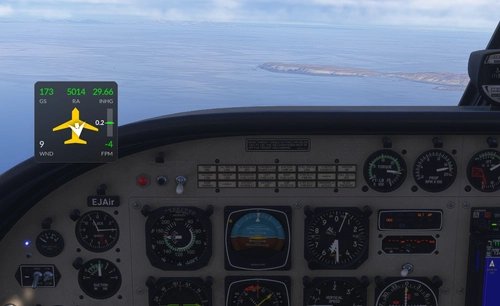
Landing Guide/Flow Pro Widget - It helps you achieve a smooth touchdown.
The Land Guide Flow Pro Widget provides real-time visual and data-driven assistance for smoother landings in Microsoft Flight Simulator. It displays crucial information such as radar altitude, drift angle, wind conditions, and crosswind risks to aid approach and touchdown. After landing, the tool monitors braking performance and displays longitudinal G-force and landing rate. The interface adapts automatically based on flight phase and supports various aircraft types with smart visibility controls.
von Andante
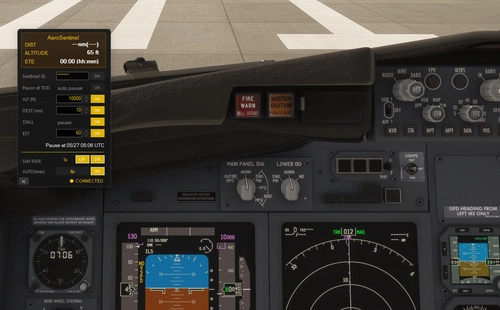
AeroSentinel - Automatically pauses at TOD and control simrate.
AeroSentinel is an add-on for Microsoft Flight Simulator that provides automatic pausing capabilities based on top-of-descent, altitude, distance, or elapsed time. It integrates with SimBrief to monitor flight progress and uses smart guard systems to pause the simulation during key events or when stall conditions are detected. The tool offers control over simulation speed and uses a universal pause method that halts all aspects of simulation, including fuel flow and time. AeroSentinel is compatible with most aircraft and supports MSFS 2024 Career Mode.
von Andante
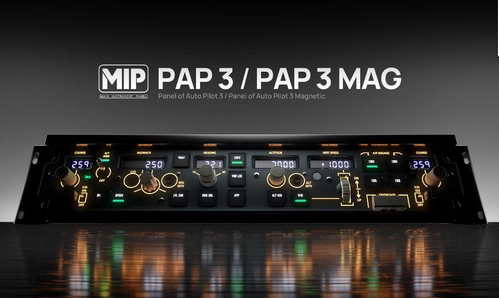
FlightFX Cessna Citation X | Winwing PAP3 | MobiFlight Profile
The FlightFX Cessna Citation X add-on for Microsoft Flight Simulator integrates with Winwings PAP3 hardware and offers a MobiFlight profile for enhanced realism. It includes functionalities such as commanded speed, altitude, and heading display, alongside features like F/D on/off control and various autopilot settings. Installation requires MobiFlight Connect and provides a comprehensive setup without the need for SimAppPro.
von Andante(LDH)
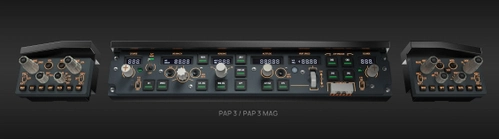
PMDG B737 | Winwing PAP3+3x PDC Combo MobiFlight Profile
This add-on provides a MobiFlight profile designed for the PMDG B737, enhancing the functionality of the Winwing PAP3+3x PDC hardware. It resolves existing issues with SimAppPro by ensuring all aircraft functions work correctly and clearly. Key features include complete support for LCD/LED displays and original button functions, as well as automation for aircraft switching. The profile is intended for users who wish to streamline their simulation experience without requiring SimAppPro.
von Andante
Melden Sie sich an, um an der Diskussion teilzunehmen
AnmeldenKommentare(36)
29 days ago
However, when it was running on my machine, I was having a bunch of game stutters and pauses. Seemed like the app wasn't processing events fast enough to avoid blocking the main game thread or something. Will have to give it another try, but there might be some optimizations needed in the code.
3 months ago
3 months ago
Thank you!
6 months ago
5 months ago
5 months ago
- i cannot see the log button, but it could be it started in mini mode, i'll check it later;
- no logs folder;
- why the 1.5.1 weighs a whopping 66 MB, while the 1.4 was only 240 kB?
4 months ago
Double-clicking in Mini Mode switches to Normal Mode.