
Beschreibung
JP Jump Ahead allows shifting (or jumping) the airplane in cruise towards the next waypoint, while appropriately adjusting fuel and time. This is an alternative to simrate acceleration for planes that do not support it at the level desired, or if simply the sim pilot prefers it. It preserves the feeling of flight continuation and is a very good solution for VR pilots wanting to fly long range routes without spending hours in the virtual cockpit. I wrote it for myself as I love long-range planes but also like to fly them in a way they were intended to fly, not just on a short range. I also feel leaving the plane to fly by itself for hours while doing something else outside of sim is very artificial to me, and breaks the feeling of continuity, which is observation of changing environment, weather and time (see the sunrise for example on your way). Of course it is my own opinion, yours may be different. The reason I wrote this app is that many planes do not do well above simrate 4, and few can do 8x or 16x, so to shorten long flights to a reasonable length I needed something else. This is work in progress, features will be added, errors fixed, please report any bugs you encounter.
Installation
Extract the zip file to folder of your choice or use “Extract all …”. There are 3 folders inside the zip: jarekp-jumpahead-ingamepanel, jarekp-efb-jumpahead and JPJumpAheadHelper. jarekp-jumpahead-ingamepanel should be placed in your community folder, it is a toolbar panel, jarekp-efb-jumpahead should be placed in your community folder, it is EFB app interface. JPJumpAhead can be placed in any convenient location, it contains Windows executable (helper), that generates graphics displayed in the toolbar panel and communicates with the simulator. To use the app, start the sim, then start the helper (your antivirus may ask you first time if it is OK to run it, you need to agree), set helper options as desired (see below) and then use toolbar app to jump and monitor from inside the sim.
Usage
NEW 0.9.15: Added FBW A32NX custom connector, plane is now supported; added simrate control, works with default control and iniBuilds lvars, needs to be enabled on helper.
IMPORTANT: Please make sure "Set Current IAS" speed handling method is selected, other two methods are likely not to work correctly. Pre SU5 way of handling speed after jumping does NOT work with SU5 (it sets speed to zero instead). Unfortunately, the method suggested for SU5 does not work either, it freezes or crashes sim. I have implemented a generic direct setting of pre jump IAS, and it seems to work well. All three methods are available in a new pulldown “Speed handling”: "Preserve [Legacy pre-SU5]", "Preserve [SU5 EXPERIMENTAL]", and "Set Current IAS".
NOTE: An essential part of the app is the ability to manipulate fuel levels in the tanks. Some planes use their own custom fuel system (for example PMDG or iniBuilds), and it usually requires a custom module to manipulate fuel for them. Current version supports airplanes using simulator fuel system, airplanes with custom lvar based refueling system, airplanes with tanks controlled with custom lvars, as well as iniBuilds airplanes supported with a custom connector. However, to take advantage of advanced features beyond simulator fuel system the airplane must have a proper tank names profile defined, if the plane uses default simulator fuel system it will work with default/default selection. To verify if the airplane you are interested to use with the app is compatible, start it on the ground with engines running and fuel tanks filled at least partially, then start JPJumpAhead helper, set appropriate profile (e.g. inibuilds or default), click “Start”, then “Test fuel”. The log window will tell you if the test fuel writing was successful, then check if the fuel really changed as specified – if the fuel tanks are locked, even with “successful” write it won’t change.
iniBuilds note: The following iniBuilds planes have been tested with the inibuilds profile A300, A320neo, A321LR, A330, A350. A340 will likely work with inibuilds profile too but not tested. A400, AN-225 and L1011 TriStar are also developed by iniBuilds, but they work with default profile, NOT inibuilds profile. Be patient after each jump, iniBuilds planes need time to adjust, so fuel correction may take 30 seconds or more on long jumps (A350 central tank is the slowest). For example a high burn 250nm jump with A330 may take up to 2 minutes. Generally multiple shorter jumps are preferred – I extensively tested 250nm. Known problem: cannot update used fuel counter in iniBuilds planes, fuel used is not updated.
A400 note: iniBuilds A400M Atlas fuel consumption is broken after SU5 (usage at about 20% of expected). You can use optional “Sync fuel burn to Simbrief FOB” to keep fuel usage reasonable until it is fixed, you have to choose “A400” tank names in pulldown to override default active tank scheme.
Fenix note: I was wrong with Fenix, they do sync with MSFS fuel system, but it can only be used after it is initialized from Fenix EFB by Fenix EFB. Fenix tank names setting is now part of default profile, please select Fenix tank names to use it. Please note that fuel must be initialized by Fenix EFB, if it is loaded by GSX fuel writes will not work.
FBW note: FBW A380X is now available, use it with lvar-refuel connector and “A380X FBW” tank names. Please note that FBW A32NX uses different fuel logic, and it can be used with its own FBW A320 connector.
BUGS: Please understand I cannot test the app in all circumstances; I am just one person “team” coding in the evening after work and then flying sim planes for fun. Please report any problems with detailed context about how they happened and I will work on them. Feel free to send me a PM on flightsim.to with any bug reports or suggestions.
Helper options
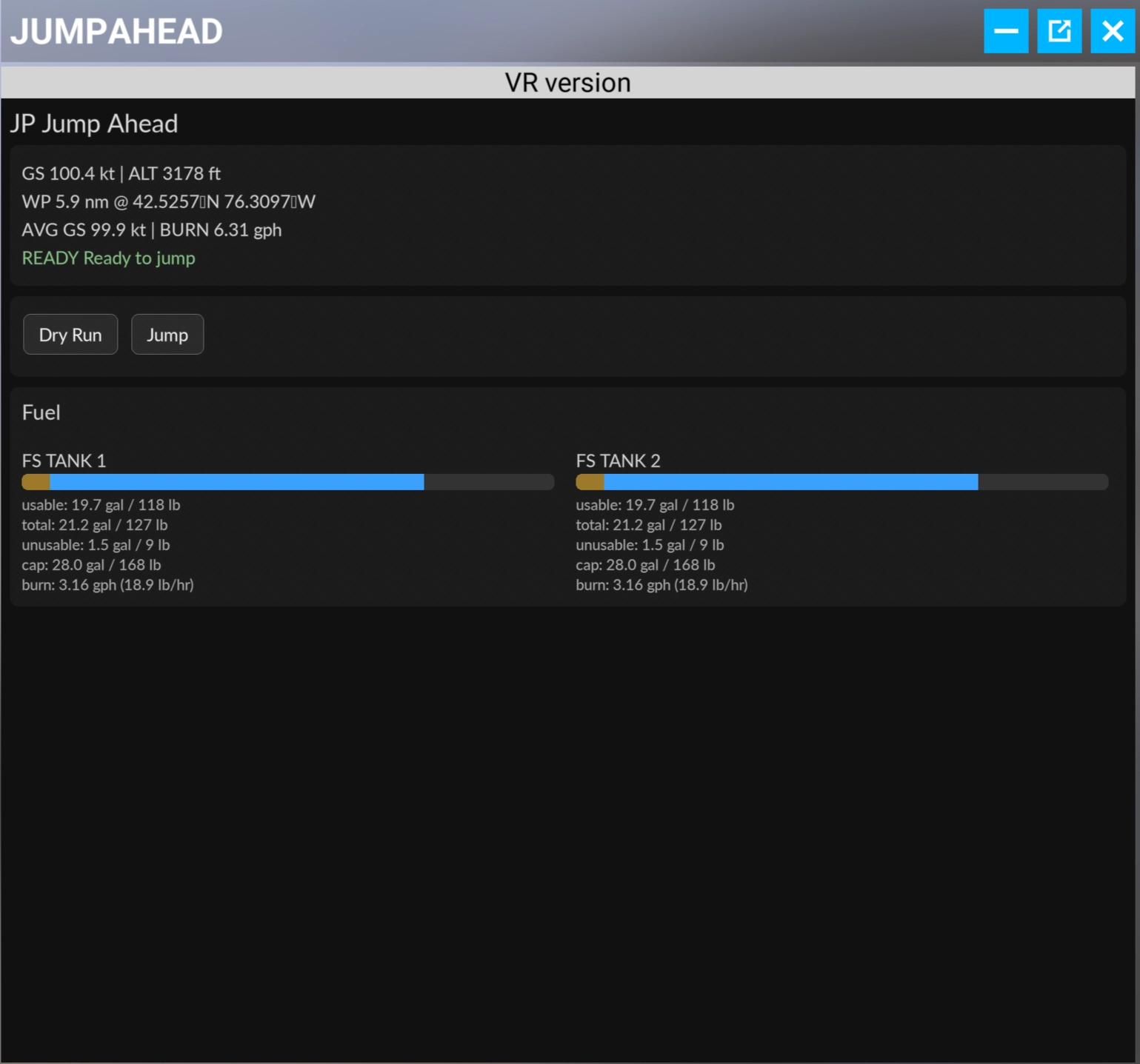
To use the app the helper must run, it communicates with the sim and executes jumps. Helper should be started and configured before the toolbar app is started. The jumps and monitoring are supposed to be done from the toolbar. Here are the helper options. “Start” button initiates connection to the sim, “Stop” disconnects. “Dry Run” and “Start” are here for debugging, they have the same function as on the toolbar app. “Dry Run” computes all jump parameters, but does not execute or change anything, while “Jump” does. “Open Browser” opens toolbar interface inside a regular desktop browser, useful for debugging. “Clear Log” clears messages in the log box below. “Test fuel” should be used to verify compatibility of the plane and settings, as described in the NOTE. “Debug” checkbox will make the log very verbose. The next 4 parameters are the main controls for the app.
“Profile” pulldown is for choosing the interface to communicate with the plane, “default” (SimConnect), “inibuilds”, “lvar-refuel” and “lvar-tanks” are now implemented.
Currently available "Tank Names" are:
- default profile: default, A340 Toliss, A400M, B-52 (GKS), C-172, Fenix A319/A320/A321, L1011 TriStar
- inibuilds profile: A300, A320neo, A321LR, A330, A350
- lvar-refuel profile: A380X (FBW)
- lvar-tanks profile: Aerostar 600 (A2A)
- FBW A320
Fuel tanks detection, unusable fuel and fuel usage
“Tank Names” controls fuel tank names and parameters, and its function is a bit complicated. One of the important parameters regarding fuel tanks is “unusable fuel”. If unusable fuel is not zero, the sim expects the app to write total fuel, including unusable, into a fuel simvar. Therefore, the app must determine unusable fuel value for each tank, otherwise the fuel levels will go bad whenever adjusted. The app is designed to do that at the start, but it is only possible when fuel levels in tanks are above unusable fuel level, if they are lower it cannot find unusable fuel value. In general, if you start a plane with fuel above 4-5 gal per tank it should be OK for automatic detection. To do that, start the plane with half-full tanks, start the app, then the log window will show auto detected tanks and unusable fuel values; below is an example for Cessna 172:
[17:54:12] Indexed tank 1: direct unusable detection qty=19.785 total=21.285 unusable=1.5
[17:54:12] Indexed tank 1: kept, qty=19.785 gal total=21.285 gal unusable=1.5 gal cap=28 gal
[17:54:12] Indexed tank 2: direct unusable detection qty=19.785 total=21.285 unusable=1.5
[17:54:12] Indexed tank 2: kept, qty=19.785 gal total=21.285 gal unusable=1.5 gal cap=28 gal
If the unusable fuel values are zero (most planes), you do not need to worry about anything, you can safely use “default”, and don’t need json file described below, unless friendly tank names are desired. Once the unusable fuel values are known, they can be stored in a json file in Configs\TankNames directory (where helper exe is), one file per plane. An example for Cessna 172 is
{
"name": "C172 default",
"notes": "Friendly tank labels",
"profile": "default",
"mappings": {
"FS1": { "label": "Left Tank", "order": 1, "unusableGallons": 1.5 },
"FS2": { "label": "Right Tank", "order": 2, "unusableGallons": 1.5 }
}
}
Where “label” is a friendly name for a tank, otherwise tank names are just their SimConnect variables or aliases, order is for display order in the toolbar panel, and the last is unusable fuel value. Each json file corresponds to one entry in “Tank Names” pulldown. Once the “Tank Names” is chosen, you can start the plane with empty tanks and the app will use it as an override. For start I provided two example json files, but over time more will be coming. If you create your own, please share. Most planes do not simulate unused fuel, so they don’t need json file, unless friendly tank names are desired. To summarize: “Tank Names” at default is OK if the tanks are NOT empty on start (or if you know unused fuel is not simulated for the plane you fly), you can empty them if you wish after the app figures out unusable fuel. Otherwise, a json file is the best choice.
Sometimes fuel usage for a plane may be off due to bugs or highly variable fuel usage. In this case you can enable “Sync fuel burn to Simbrief FOB” on the helper. This option overrides actual fuel usage computed and uses Simbrief fuel on board values from flight plan instead, of course it only works in Simbrief plan mode. It can be handy, like in a case of A400M which fuel usage is broken after SU5 and until it is fixed this is a temporary solution. In this mode there is additional button “Sync fuel” in toolbar app which will just sync fuel to Simbrief without any jumps.
Jump distance
The jump is executed in the direction (and on the great circle route) to the next waypoint, airplane heading is adjusted to the heading to the waypoint, and altitude is preserved. “Max jump nm” limits maximum jump to 200 nm at default, and you can change that here. A jump will reload things, most notably scenery, typically it is instant unless you jump into a low altitude over Manhattan or a similar place. However, for stability of the autopilot in your plane jumping too far in one step is not advised. Similarly, jumping over the waypoint leads to nav system confusion and should be avoided – the second parameter “Min wp nm” takes care of that. The plane will use “Min wp nm” as the minimum distance before the waypoint that is it is allowed to be shifted to – the default here is 2nm, but for fast jets you may want to increase to 5nm.
Waypoints
Navigation source for waypoints is controlled from toolbar or EFB interface app. Many planes synchronize their flight plan with MSFS base navigation system, in this case the app will detect next waypoint automatically and no further action is needed. Customized airliners like iniBuilds, Fenix or PMDG keep their flight plans inside their custom avionics, and they cannot be reliably detected. In this case the app provides 3 fallbacks. First, it automatically falls back to Track mode, where it can jump along current track to a predefined distance, controlled by user input (see screenshots). In this case you must ensure waypoints are not bypassed by choosing appropriate distance. The second fallback, which must be chosen manually (by clicking on the source button) is Simbrief. If you put your numerical Simbrief ID in the helper text box, the app will read current active Simbrief flight plan and detect next waypoint based on that. It provides manual override, you can choose waypoints manually by cycling through them just in case you get a shortcut. Finally, you ca load a PLN file via helper “Load PLN …” button, which works exactly the same way as Simbrief, except the file is the source of the flight plan. Please note that Track mode is the least accurate due to airplane usually wobbling slightly around the track. You can execute multi-waypoint jump, i.e. select a waypoint target that is not the next one. In this case you have two choices: “Shortcut” where it just jumps directly, or “Follow plan”, where it will compute distance over all flight plan segments between you and the target waypoint. Please remember that such jumps may confuse autopilot. Known problem: cannot load PLN file created by EFB due to no coordinates, workaround is to convert to generic PLN with Little Nav Map.
Speed
The app tries to preserve speed as much as possible, there are three choices: “Preserve [Legacy pre-SU5]”, “Preserve [SU5 EXPERIMENTAL]”, and “Set Current IAS”. Legacy way of handling speed after jumping does NOT work with SU5 and later (it sets speed to zero instead). Unfortunately, the method suggested for SU5 does not work either, it freezes or crashes sim at this time (may be fixed later). I have implemented a direct setting of current pre jump IAS, and it seems to work well. All three methods are available in a pulldown “Speed handling”: "Preserve [Legacy pre-SU5]", "Preserve [SU5 EXPERIMENTAL]", and "Set Current IAS". Please make sure "Set Current IAS" is selected. Sometimes IAS is off by 10-20kts after a jump, it seems to be a bug in MSFS dev kit, I am working on a way around it.
Sometimes IAS is off by 10-20kts after a jump, it seems that IAS gets corrected for wind component (must be a bug somewhere in the sim), i.e. part of tailwind added, part of headwind subtracted. I have implemented an empirical fix, available by enabling “Apply IAS wind correction” on the helper. It corrects this behavior by adjusting target IAS appropriately. Works well for many airplanes.
Flight
The best way to use the app after starting and configuring the helper is to control it from toolbar panel. You can carry out takeoff and climb normally, reach cruise, then jump in 250 nm (or so) steps over to the next waypoint, overfly the waypoint, then resume jumps, unless something interesting is happening worth watching. This can continue until TOD, where normal flight should be resumed. Expect some small adaptive action from autopilot after the jump, typically the altitude isn’t exactly the same due to pressure variations and some minor corrections to heading (wind!) and attitude are also expected. The app has 15 second “cooldown” mode implemented to prevent immediate next jump and possible instabilities. If you use advanced ATC like SayIntentions or BeyondATC you may need to check in with the ATC periodically since it may lose you after jumping. Typically, 200 nm jumps are OK, but you may want to give the ATC few seconds after each jump to get oriented and communicate. I tested with SayIntentions and found no problems.
Simrate panel
Simrate control needs to be enabled on the helper window, then you will get 3 buttons to control simrate (increase, reset to 1x, decrease). The simrate control works with Simbrief fuel sync (if enabled), when in high simrate it will decelerate to 1x, sync fuel, then accelerate back to previous rate. This feature helps with iniBuilds planes that do not update fuel for simrate greater than 4x.
Please let me know about any errors and bugs. Enjoy!
Known problems
· Inibuilds planes cannot update used fuel counters, they are locked.
· Cannot read PLN file created by EFB due to lack of coordinates. Workaround: convert using LittleNavMap.
JP Jump Ahead – A tool to skip long cruise segments as an alternative to simrate acceleration.
JP Jump Ahead is an in-game panel and helper tool for Microsoft Flight Simulator that allows pilots to skip long cruise segments by instantly shifting their aircraft to the next waypoint. It adjusts fuel and time to maintain flight continuity and is especially useful for aircraft that handle poorly at high sim rates or for VR users. Configuration options include jump distance and fuel tank management, allowing flexible integration into various flight scenarios.


Nutzerbewertungen
7 Bewertungen
Versionsgeschichte
- Added FBW A32NX connector, the plane is now supported. - Added simrate control, including default control and iniBuilds lvars, disabled for Fenix - Known problem: Inibuilds planes cannot update used fuel counters, they are locked. - Known problem: Cannot read PLN file created by EFB due to lack of coordinates. Workaround: convert using LittleNavMap.
Ähnliche Addons
Little Navmap - MSFS 2024 list of handcrafted airports
This add-on provides a comprehensive CSV file listing all handcrafted airports available in Microsoft Flight Simulator 2024, allowing users to easily identify airports on the Little Navmap map. Each airport entry includes version information, enhancing flight planning by highlighting updates and compatibility with MSFS 2020. The list is regularly updated to reflect new releases and is designed for straightforward import into Little Navmap. Users can access crucial information for efficient navigation and planning during their flight simulations.
von JarekP
Little Navmap - MSFS 2020 list of handcrafted airports
This add-on provides a CSV file listing all handcrafted airports for Microsoft Flight Simulator 2020, marked as "star" POIs in Little Navmap. Each airport entry includes update information for reference during flight planning. The list encompasses both default and premium airports, along with updates up to World Update XVIII, covering Germany, Austria, and Switzerland. Users can easily import this list into Little Navmap to enhance their flight planning experience.
von JarekP
Ferry Tank Simulator – adds ferry tank functionality to a plane
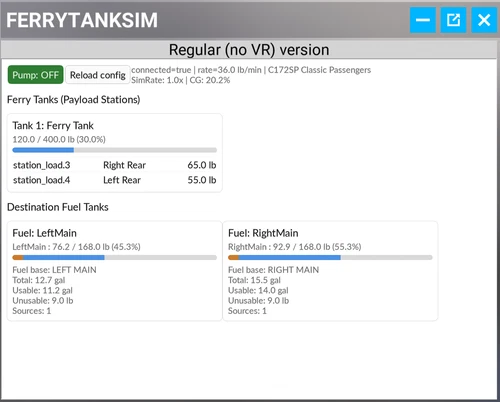
This add-on simulates ferry tanks in your aircraft by allowing you to assign payload stations as temporary fuel tanks, transferring weight from seats or cargo to main fuel tanks and affecting center of gravity. It operates through an in-sim toolbar panel and a desktop helper application (Windows executable), requiring a configuration file for each supported aircraft. No visual fuel tank changes are made; the simulation is focused on payload-to-fuel management for extended-range flights. Compatible aircraft include several popular GA planes, with easy setup for new models via a detection tool.
von JarekP
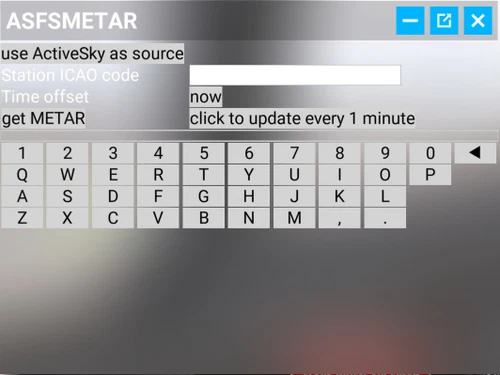
ASFS Metar - a tool to retrieve METARs from Active Sky FS with a toolbar app
ASFS Metar is a toolbar application designed to retrieve METAR data from Active Sky FS directly within Microsoft Flight Simulator. This tool is particularly beneficial for users employing historical or custom weather, as it circumvents the limitations of standard METAR sources which may not apply. The package includes a panel app and a reverse proxy server to facilitate data retrieval. It is especially useful for VR users who cannot access desktop applications while simulating.
von JarekP
Melden Sie sich an, um an der Diskussion teilzunehmen
AnmeldenKommentare(53)
10 days ago
10 days ago
13 days ago
10 days ago
17 days ago
17 days ago
18 days ago
17 days ago
about 1 month ago
in the logs of the app i see a "[17:12:05] SimConnect exception: 20 (870/1)"
about 1 month ago
about 2 months ago
Installed this and at level altitude and speed (a350-900) but when I opened the app the screen was blank, nothing there.
about 1 month ago
2 months ago
It's literally a game changer for me.Not everyone has time to do long haul and let computer sit there for 9-12hrs.But this tool literally made it possible.It works as advertised.
about 1 month ago
3 months ago
Most of the planes I fly work with this mod flawlessly, however, the Bonanza A36 with TDS GTNXi Garmin fully resets and loses the flight plan on jump. The Nav basically restarts itself in each jump, but it did jump accurately though. Is there a fix for this yet? If not and you're willing, let me know whatever it is you need from my side. Thanks again!
3 months ago
3 months ago
Not everyone can fly a 12 hrs flight in real time, as we're not really pilots...
This add-on gave us an opportunity to speed up the cruise phase in an interesting way.
Each "jump" feels kind of interesting, as AP and status needed to be checked again. (Almost like in the novel "Foundation"?)
I like it that it was not "jump to T/D", so I can still observe the slowly changing environment/world.
Really great work!!
I used in on FBW A380 and it is quite interesting.
Hope PMDG 777 will be fully supported in the futrue (with fuel information)
3 months ago
PMDG planes are on the list, and based on the info I checked they are doable, however with a dedicated connector. It will need to wait a bit, I am now in the middle of a busy season with lots of travels, I will be doing work on the app, but less than normally. I even don’t have much time to fly my sim planes. Should be back to normal schedule after summer (end of September).