
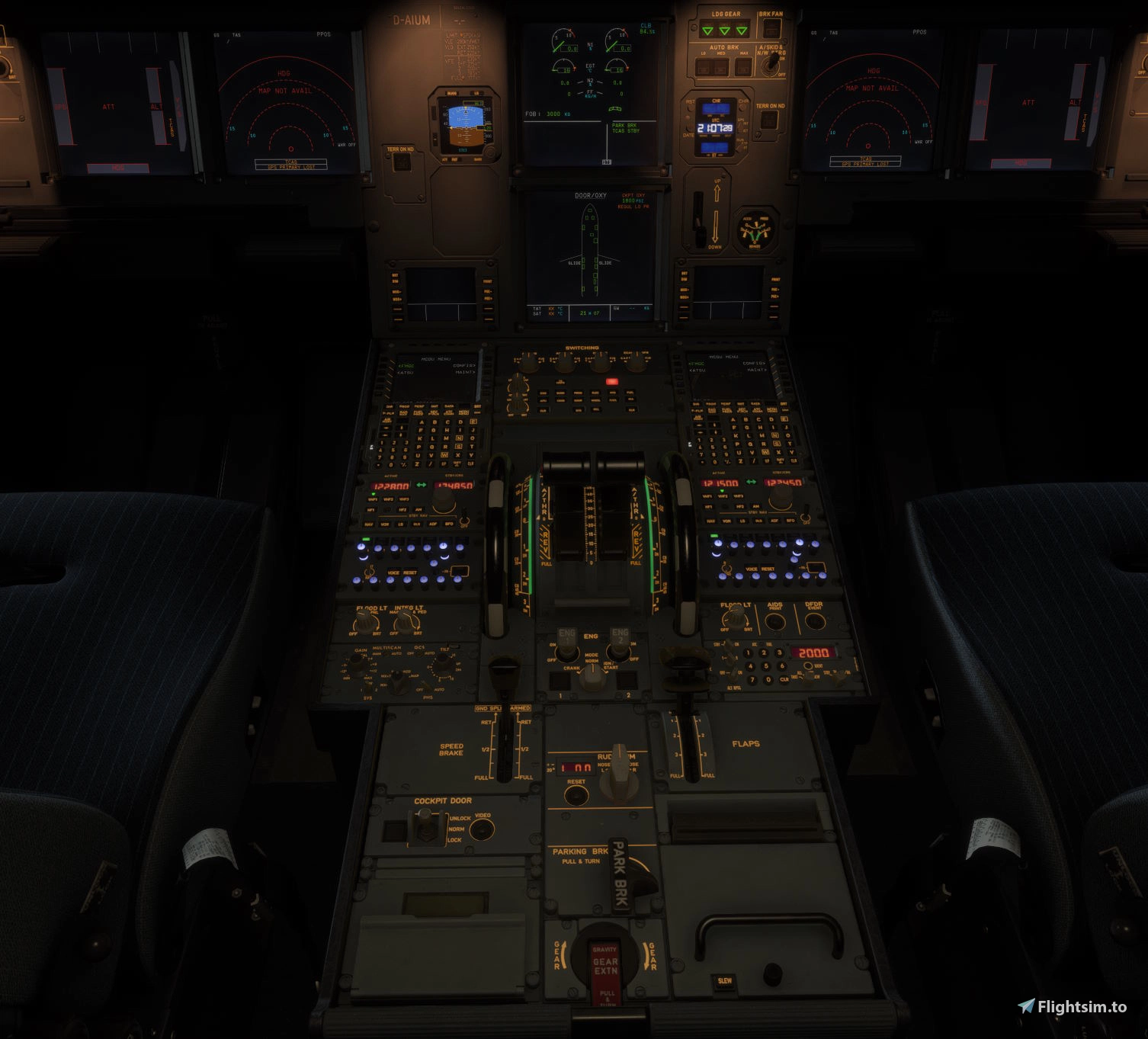
Beschreibung
A Mobiflight profile for the Fenix A32X that combines functionality for WinCtrl (former WinWing) Airbus FCU, EFIS (left and right), ECAM, MCDU, Airline Joystick (L), Throttle, PAC, AGP, TCAS, RMP, and NWS. Each hardware device has its own page in the project file, allowing you to easily dismiss devices that are not part of your setup. At the top of many device pages, you can manually set some parameters to your liking, e.g. maximum / minimum brightness for different screens etc.
While most buttons follow the correct functionality, some (especially the extra buttons that are not present in the real aircraft) implement custom functionality. On the ECAM and Sidestick profiles, you can toggle between Advanced and Basic functionality:
- Advanced: In order to minimize the amount of times one has to change view in the virtual cockpit, this profiles maps a lot of functionality onto extra buttons.
- Basic: Most of the extra buttons are not binded. This profile is designed to go along with my Elgato StreamDeck profile which will be responsible for much of the extra functionality. You can find the StreamDeck profile here
Tested with MobiFlight version 11.2.0
FCU and left / right EFIS
Fully working, based on an earlier version of the WINWING FCU / EFIS profile by copper (link). I fixed some issues and added correct lighting dependencies. At the top of the page, you can change maximum INTEG brightness and minimum LCD backlight brightness.
Captain MCDU
Fully working (requires Mobiflight Beta / version 11) based on the WinWing MCDU Captain profile by gamesyns (link). I added correct INTEG light synchronization.
ECAM Panel
Fully working with correct INTEG light synchronization and the following customizations in the advanced profile (please also refer to the images):
- Upper left blank button: STROBE light ON
- Lower left blank button: STROBE light OFF
- Upper right blank button: SEAT BELTS ON
- Lower right blank button: SEAT BELTS OFF
You can toggle between advanced and basic mode using the "Use Advanced Mode" item at the top of the page as follows: Double click the entry and under Modify -> Modifiers edit the Transformation to be either 0 (basic profile) or 1 (advanced profile), then hit OK to save. (The entry itself should always be active)
Throttle
Fully working (including rudder trim display), however, the rudder trim left / right knob feels off, but I haven't found a way to make it feel more like the real thing. Following customizations are available (please also refer to the images):
- FIRE 1 button: Controls the captain's Chrono
- FIRE 2 button: Toggles the AGP's Clock UTC display state between standard (i.e. UTC display) and custom RMP1 frequency display. More on that in the AGP section.
The following functionality has to be set in MSFS's control settings and calibrated via the MCDU menu's Config page:
- Throttle 1 & 2 axes
- Spoiler axis
- Flap axis
Airline Joystick
The following functionality has to be set in MSFS's control settings:
- Nose Wheel Steering Axis: Joystick LAXIS Z
- Hat switch to look around
- Aileron axis
- Elevator axis
The basic profile offers custom bindings for elevator pitch control (which the WinCtrl Throttle sadly doesn't offer natively), the advanced profile binds every button on the stick to custom functionality, please take a look at the images to see which bindings are available.
Notably, the slider below the stick now controls the MIP and OH INTEG lighting (in both profiles).
AGP
Completely working (thanks to KenTheSimmer for help with the clock's test and set mode behavior). Custom functionality (in both profiles):
- The clock now also allows to view and set the RMP1 standby radio frequency.
To set the standby frequency, use the clock's RST (corresponds to outer) and CHR (corresponds to inner) turn knobs (these can't be turned in the real aircraft).
- To view the standby frequency, use the Throttle's FIRE 2 button to toggle the clock's UTC and radio mode (radio mode will be indicated by no colons being shown in the UTC display). While in radio mode, the following buttons provide custom functionality (that is, their "normal" UTC mode functionality will be disabled until you switch back to UTC mode):
SET: Transfers the standby and active frequency
- RST: Sets the standby frequency to Unicom (122.800 MHz, useful for e.g. VATSIM / IVAO)
The frequency selector knobs will work in both UTC and radio mode. Please also refer to the images.
TCAS
Completely working with correct lighting and the possibility to customize:
- brightness of ATC FAIL light
- maximum and minimum brightness of squawk display
RMP
Completely working with correct lighting, including VHF3 with data channels and standby navigation section. Minimum and maximum brightness is customizable.
NWS
Pedals disconnect button and lighting is working, but the tiller axis has to be assigned in the simulator's control panel.
Installation
Extract the zip and open the content in the Beta version / Version 11 of Mobiflight. You may be prompted to assign your hardware to orphaned hardware.
Notes
Feel free to upload your modifications, but please link to this page and the pages of the original FCU / EFIS and MCDU profiles mentioned above.
Häufig gestellte Fragen
Complete WinCtrl Mobiflight Bundle for Fenix A32X
This Mobiflight bundle provides comprehensive profiles for the Fenix A32X, covering WinCtrl Airbus FCU, EFIS panels, MCDU, ECAM, airline joystick, throttle, PAC, AGP, TCAS, RMP, and NWS hardware. The package integrates correct lighting dependencies, customized button assignments, and enhanced synchronization across multiple panels. Custom functions are included for extra buttons and improved in-cockpit interaction. Installation requires Mobiflight Beta / Version 11 and manual hardware assignment.


Nutzerbewertungen
2 Bewertungen
Versionsgeschichte
Added support for WinCtrl RMP and NWS
Ähnliche Addons
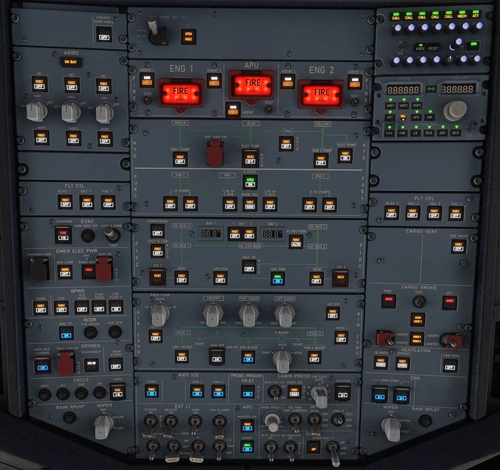
Elgato StreamDeck XL Profile for Fenix A320
This is a Stream Deck XL profile for the Fenix A320 in Microsoft Flight Simulator 2020 and 2024, featuring seven pages that cover primary cockpit controls including overhead panels, lighting, communications, and weather radar. It mimics the cockpit layout as closely as practical, with frequently used buttons accessible and a dedicated radio frequency widget present on most pages. Integration with the PilotsDeck plugin and a WASM module via MobiFlight is required.
von jufi2112
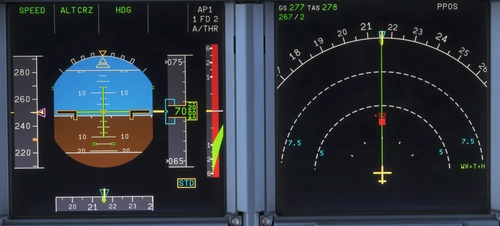
MSFS 24 TCAS Injector
MSFS 24 TCAS Injector is a utility for Microsoft Flight Simulator that allows users to inject custom TCAS traffic targets into the simulator environment. It is composed of a C# application for traffic spawning, a web interface for selecting and customizing airframe types and parameters, and a Node.js server for communication. The web interface is accessible from any device on the same network, including smartphones and tablets. Setup and customization options are detailed in the provided documentation.
von jufi2112
Melden Sie sich an, um an der Diskussion teilzunehmen
AnmeldenKommentare(16)
about 4 hours ago
6 days ago
Dieser Kommentar wurde gelöscht
about 1 month ago
30 days ago
4 months ago
3 months ago
7 months ago
7 months ago
7 months ago
Q: Is there an easier way to change them all in one go as the FCU/EFIS will take some considerable time?. thanks...
7 months ago
I'm not quite sure whether I completely understand the problem you got.
In case you want to change to controller that is used by the profile to one that is available at your end, you may go to Extras -> Controller Bindings, and therein choose, e.g. for the "WINWING FCU-32 + EFIS-32L + EFIS-32R", on the right hand side the controller that is available at your end.
Did this answer your question?
7 months ago
7 months ago
I think this is because I did not explicitely map a value to the LED brightness variable and therefore the actual value varies between users, depending on whether they've previously set this variable. I'll add an output variable for this and update the profile, then it should behave correctly for every user.
7 months ago
7 months ago
Cheers
7 months ago
7 months ago
In theory, you should be able to use it as-is and it should just ignore the missing hardware (I often times test stuff without all of the hardware being connected). If you get annoying warnings, you can do the following:
The profile is separated into multiple sub-profiles, one for each piece of hardware. You can click the three dots to the top right of the "WW Sidestick" sub-profile and choose to remove it.
All the best